USB3 camera troubleshooting
Troubleshooting (most common problems)
Most common problems are related to the camera cable, connection, USB extender etc.
This article aims to help you either solve the issue or narrow down the cause of the issue.
Insufficient Data Received / Device is not synchronized (clock is drifting)

- Insufficient Data Received (Swing / Motion Catalyst doesn’t have enough acquired video data to capture)
Causes for this may be dropped frames., (please see our our see dropped frames below for troubleshooting steps).
Hardware limitations or resource limitations, check if any other heavy applications are running.
If using a laptop on battery, try to connect the charger, does the error go away? If so changing your power plan could help (to high performance).
- The software has not received enough data to means the video data received is not in sync with the computer clock.
Depending on your camera type there are different things to try. Many times “Device is not synchronized” is an error that follows “Insufficient data received’, however if you only receive the “Device is not synchronized (clock is drifting)” try restarting capture mode, or restarting the computer.
Leaving the system in capture mode for longer periods can cause this. We reset the clock once capture mode is started (restarted) but left in capture long enough the clock time of the camera and the computer clock will begin to drift apart.
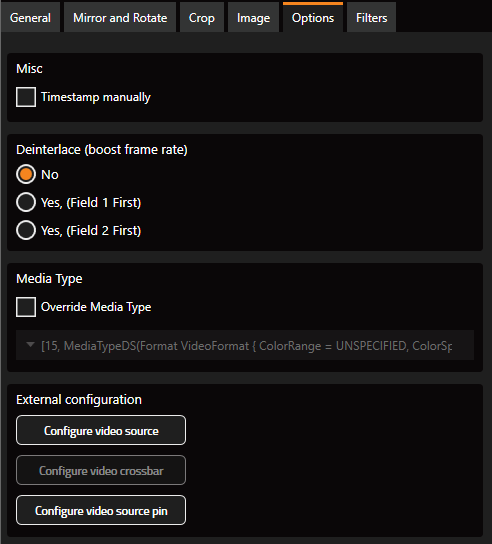
Last resort workaround for web camera users: Try to enable “timestamp manually” from the Advanced Camera settings –> Options tab.
Dropped frames
Q: What are dropped frames?
A: Dropped frames means video frames received from the camera(s) are lost to a varying degree.
Depending on the amount of dropped frames it may have a severe impact on the recorded video. In environments with multiple cameras this is not good as it will appear out of sync and key moments of the recorded activity could be missing.
Causes of dropped frames
USB3 camera connected to a USB 2.0 port.
Using poorly designed cables or extender cables.
Exceeding the recommended cable length (5 meters for USB3).
USB3 camera connected to a USB hub with other devices sharing the same hub, lack of bandwidth.
Camera uses too much bandwidth vs what is available on the system.
Not enough available system resources due to other running applications.
How to fix dropped frames
For USB cameras our recommendation is to try to lower the frame rate (and or device link throughput - for FLIR cameras) to reduce the bandwidth consumption.
Troubleshooting steps:
- If using multiple cameras, try to unplug or disable some cameras, does the system still report drop frames?
If this helps it could be an indication of a performance problem, or a bandwidth resource issue. Try to lower the frame rate of both cameras and see if the stability improves.
Close other software that can be CPU & Graphics intensive to free up resources.
Try to lower the frame rate: (example for FLIR Blackfly S )
Try to reduce “Device Link throughput”, see “reducing camera bandwidth” below.
Examine cabling, are the cameras connected to a USB hub or extender? Is the cable heavily bent or have visible damage? Try connecting them directly to the computer.
Does the computer meet the recommended specifications? If not perhaps you using more cameras than the system can handle.
Some USB cables work better than others, and certain built-in USB 3.0 controllers can cause problems.
As USB3 can be quite tricky we recommend sticking to the recommendations the large reputable Machine Vision camera manufacturers recommend. Please see our recommended USB components article for details: recommended-usb3-components.md
Reducing camera bandwidth consumption
Reducing the framerate alone or in combination with Region Of Interest (ROI) can have an impact on how much bandwidth a camera consumes and effectively reduce or stop dropped frames.
For example USB 3.0 is advertised to be capable of 5Gb/s, which is 625 MB/s.
One USB 3.0 camera with a resolution of: 1920 x 1200 resolution at 150 FPS will use roughly 345MB/s per camera. - It is therefor important to have a dedicated USB 3.0 controller card per our recommendations for multiple camera setups (in most cases). In may cases a laptop won’t be able to drive two full HD high FPS USB3 cameras.
Another approach, often good in combination with reducing throughput is utilizing region of interest, often called ROI.
How do I know how much bandwidth a camera is consuming?
You can use the formula: Data Rate = Resolution * Frame rate * bit depth.
In most cases the bit depth will be 8 bits.
| Data rate MB/s | Resolution (width x height) | Frame Rate | Bit depth (bits per pixel) |
|---|---|---|---|
| 30.7 | 640x480 | 100 | 8 |
| 92.1 | 1280x720 | 100 | 8 |
| 131.1 | 1280x1024 | 100 | 8 |
| 207.4 | 1920x1080 | 100 | 8 |
Region Of Interest (ROI)
Note: Supported cameras: Swing Catalyst Fox, FLIR Blackfly S
Using region of interest (or area of interest) can help reduce how much bandwidth a camera consumes and and boost the FPS. It can also be used to help reduce the amount of dropped frames.
Please see our article on how to use Region Of Interest.
No Data received

This indicates that Swing Catalyst is not receiving any video images or data to process.
Examples of causes for this type of error can be:
Bad cable or connection: Try to disconnect the camera and connect it to a different USB port.
Erroneous settings: (Especially for web cameras and DirectShow cameras). Check the exposure setting, if auto deselected and exposure is set very high the frame rate can drop significantly.
Something went wrong

This type of error is common if the camera is in use by another application
Especially web cameras can easily be in use by third party software, try to close other programs and retry. If the error persists try rebooting the computer.
The camera doesn’t show in the camera settings list
If the camera is not showing in the camera list the camera is not detected or connected properly.
If the camera isn’t showing up in the camera list it’s most likely not recognized in Windows or in use by another application. Try disconnecting the camera and reconnecting it.
The camera might not be supported by Swing Catalyst .
For The Imaging Source cameras: If you have the manufacturers driver installed you might need to uninstall it for it to work.
Ethernet (network) / GigE cameras might require IP configuration (please look for a model / manufacturer specific article in our help center).
Connectivity problems (camera disconnecting)
USB 3 can be prone to connectivity problems. Most often these issues stem from a bad USB 3.0 extender, too long of a cable (overall) or simply a cable that has been damaged by simply bending it too sharply.
Other
Depending on your hardware it might not be the best to have the sharpening and denoise filters on, turning these off will reduce some CPU & GPU usage. You can find the camera filters in the Advanced Camera Settings Filters tab. More info on filters here: improving-image-quality.md