Force Plate technical troubleshooting guide
This article explains how to troubleshoot force plate connection and data-quality issues. Not covered: older Motion Plates (Motion Plate 3 and 4).
1) Quick check: is the plate recognized by Windows?
Connect the force plate directly to the PC (avoid hubs/adapters for now).
Open Device Manager.
Look for the plate listed as USB Serial Converter.
If recognized by Windows, the plate should appear in Device Manager as USB Serial Converter.
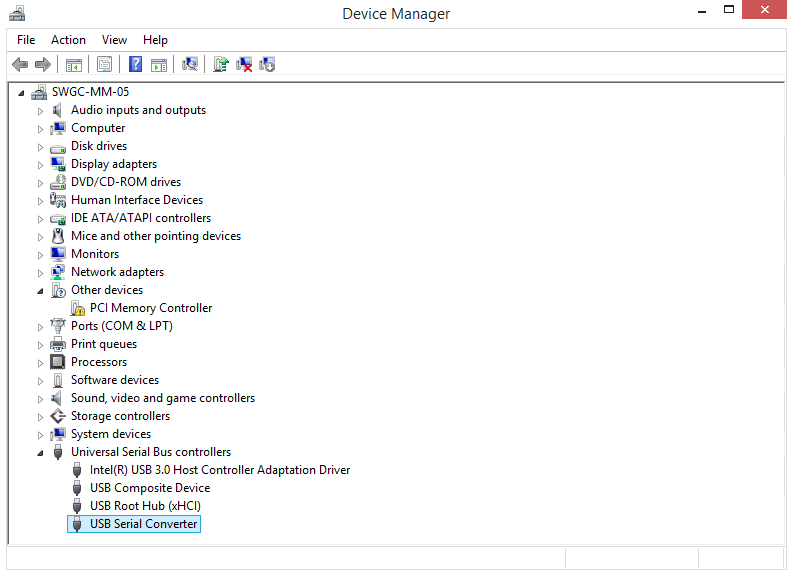
Example: force plate recognized by Windows as “USB Serial Converter”.If you see USB Serial Converter, Windows is detecting the device and you can move on to the sections below. If not, start with Plate not detected .
2) Common issues
A) Plate feels unstable / readings inconsistent
Cause: One or more feet aren’t fully contacting the floor. This is most common with older plates using an older ground rail style, where the feet may not protrude far enough through the rail.
Make sure all four feet protrude through the rail and are firmly contacting the ground.
Re-seat the plate on a flat surface and re-check.
B) Plate not showing in Device Manager
Most likely cause: a bad or incompatible USB cable.
Try a known-good USB cable.
Plug the plate directly into the PC (no hubs).
Try a different USB port (preferably a port on the PC itself, not a keyboard/monitor hub).
3) Plate not detected at all (rare, hardware-related)
Symptoms
No “USB connected” chime when plugging in
Nothing appears in Device Manager
Your software (e.g., Swing Catalyst) doesn’t detect the plate
Possible cause: dead USB board (seen with seriesAM6147). This can be triggered by static discharge or power events (e.g., lightning).
What to do
Confirm with a different cable and different PC/port (direct connection).
If still not detected, escalate as a likely hardware failure (USB board).
4) Noisy force data
What it looks like
Ripple/noise across one or more channels
CoP trace shows visible “ripples”
Data looks unstable even when the plate is unloaded
Common causes
USB hub noise (especially powered hubs with noisy switch-mode power supplies)
Electrical noise from other USB devices sharing the same hub/controller
Noisy USB power from the PC
Ungrounded outlet / poor grounding in the setup
Recommended checks
Connect the plate directly to the computer while troubleshooting (avoid hubs).
Disconnect other USB devices temporarily (especially high-power or “noisy” devices).
Use a USB cable with at least one ferrite bead (helps suppress high-frequency electrical noise).
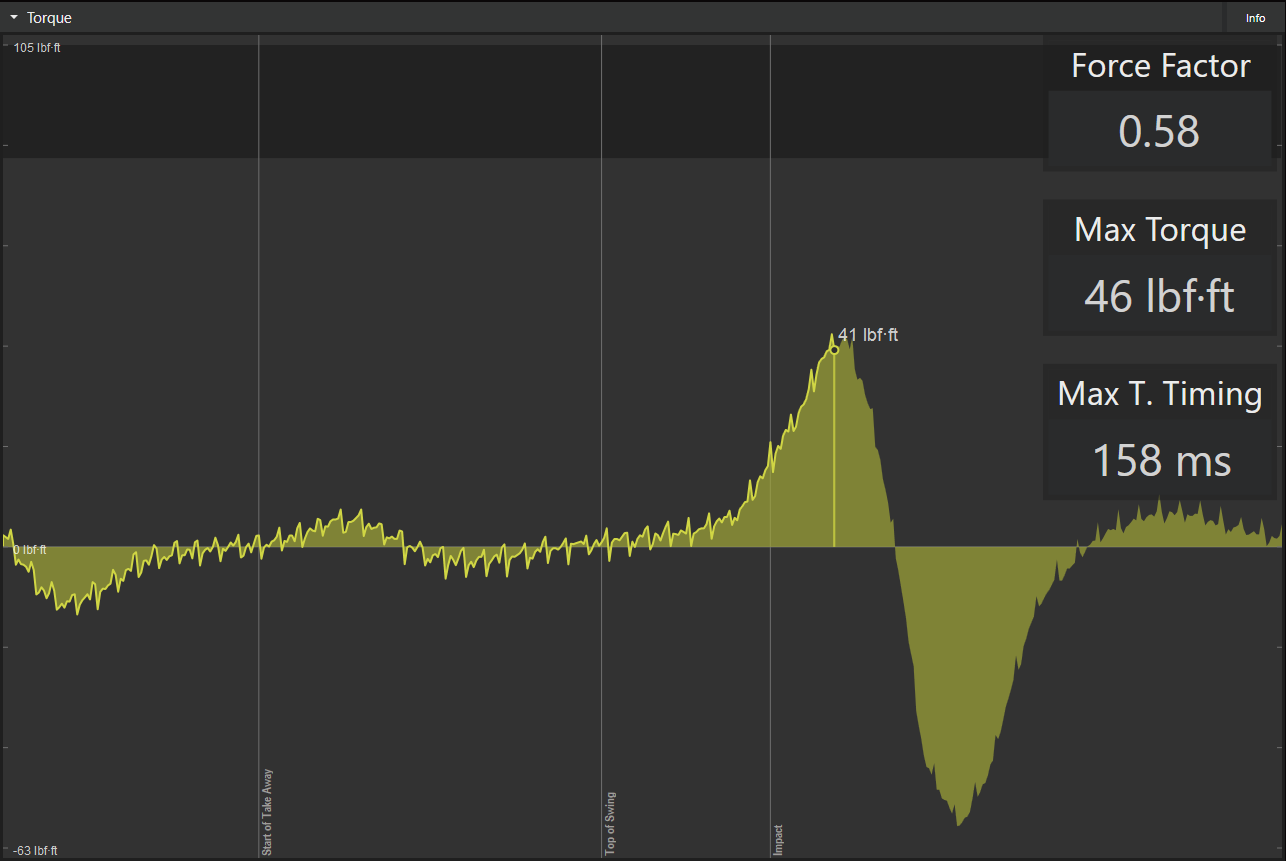
Example: noisy torque readings due to bad powered USB extender with bad power supply.
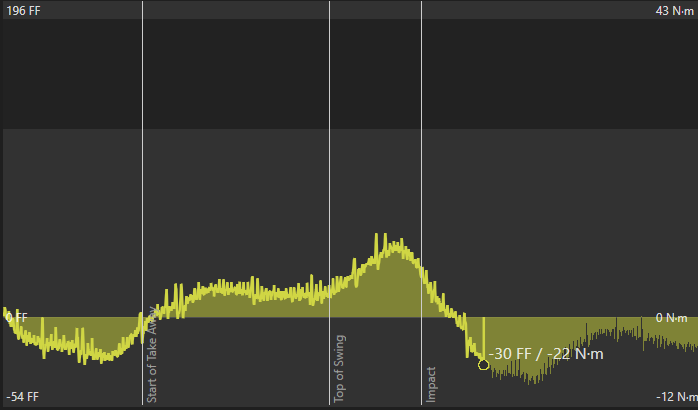
Example: Noisy torque data as a result of improper installationFurther examples of noisy data: the CoP trace has ripples and many (or all) data channels appear noisy. This is most commonly caused by powered USB hubs with noisy switch-mode power supplies.
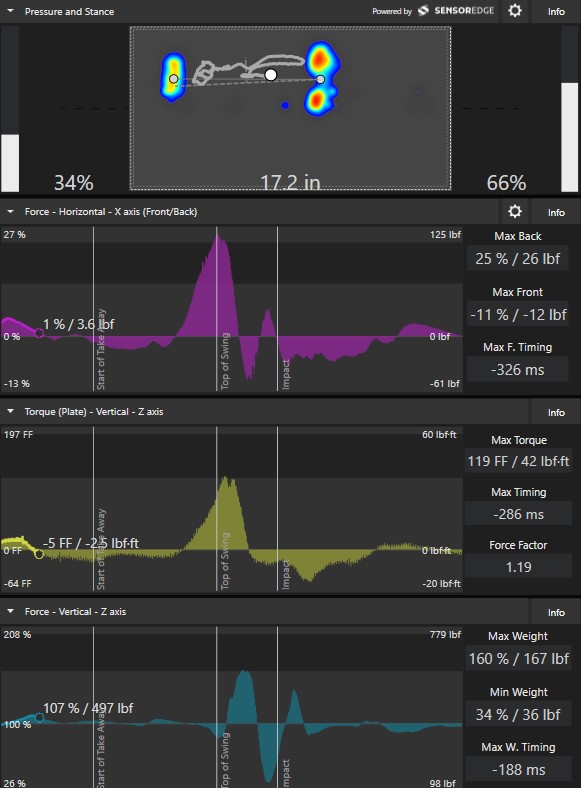
Example: noise visible in force/torque channels (screenshot).
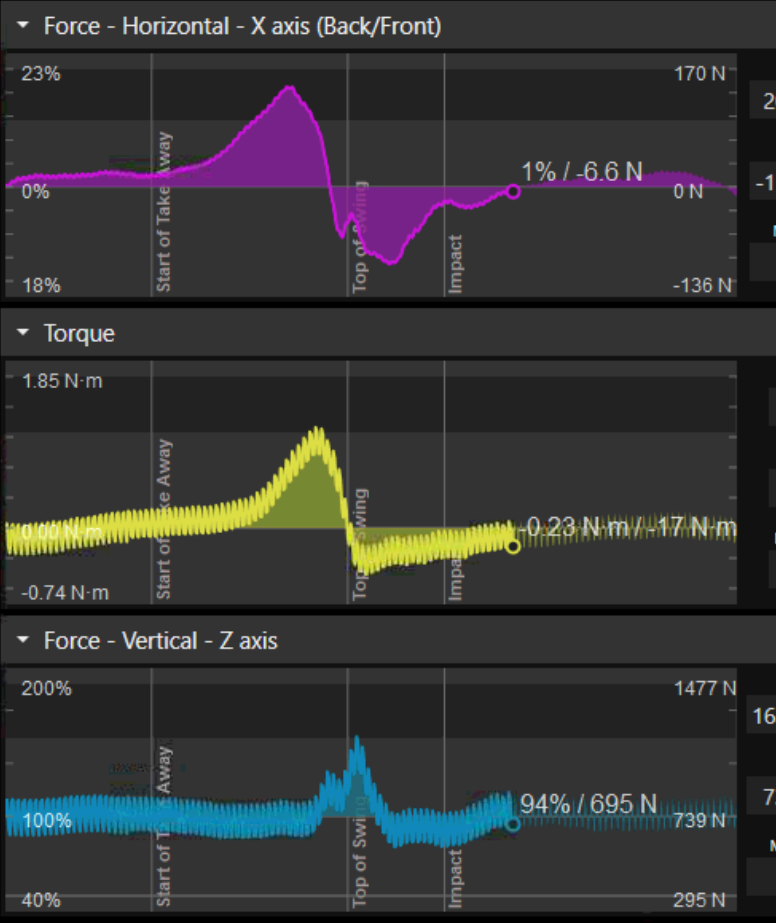
Example: noise caused by using a PC without a grounded outlet (screenshot).
5) What can I do to fix noisy force data?
Test laptop on battery power: If you’re using a laptop, disconnect it from AC power and record again.
If the noise improves, the issue may be the AC adapter ormains power.
Mains outlet could be lacking proper ground.
Disconnect mains-powered accessories: Unplug powered USB hubs, cooling fans, docks, or other mains-powered equipment connected to the computer.
Check for external electrical noise: If nothing in your setup is causing the noise, it may be coming from the environment. If possible, isolate by turning off nearby equipment (access to the breaker box can help systematic testing). Some examples of sources that can create a lot of noise are LED lights.
6) Compatibility note (software + CPU)
CPUs older than ~2012 that don’t support AVX/AVX2 may not supportBertec devices in Swing Catalyst10.2.4 and newer.
- If you suspect this, test on a newer computer or confirm the CPU supports AVX/AVX2.
Last updated: 2026-03-03