How to setup NVIDIA GPU Encoder
How to use the NVidia GPU encoder in Swing Catalyst
This support article covers how to fix NVIDIA GPU Encoder errors.
GPU Compatibility
Not all NVIDIA GPUs are supported. AMD/ATI GPUs are not supported at all.
1st make sure GPU NVIDIA is selected in Swing Catalyst’s Video & Capture settings.
If you have more than 2 cameras, make sure to enable the patch under “Advanced Settings” under Video Encoding.
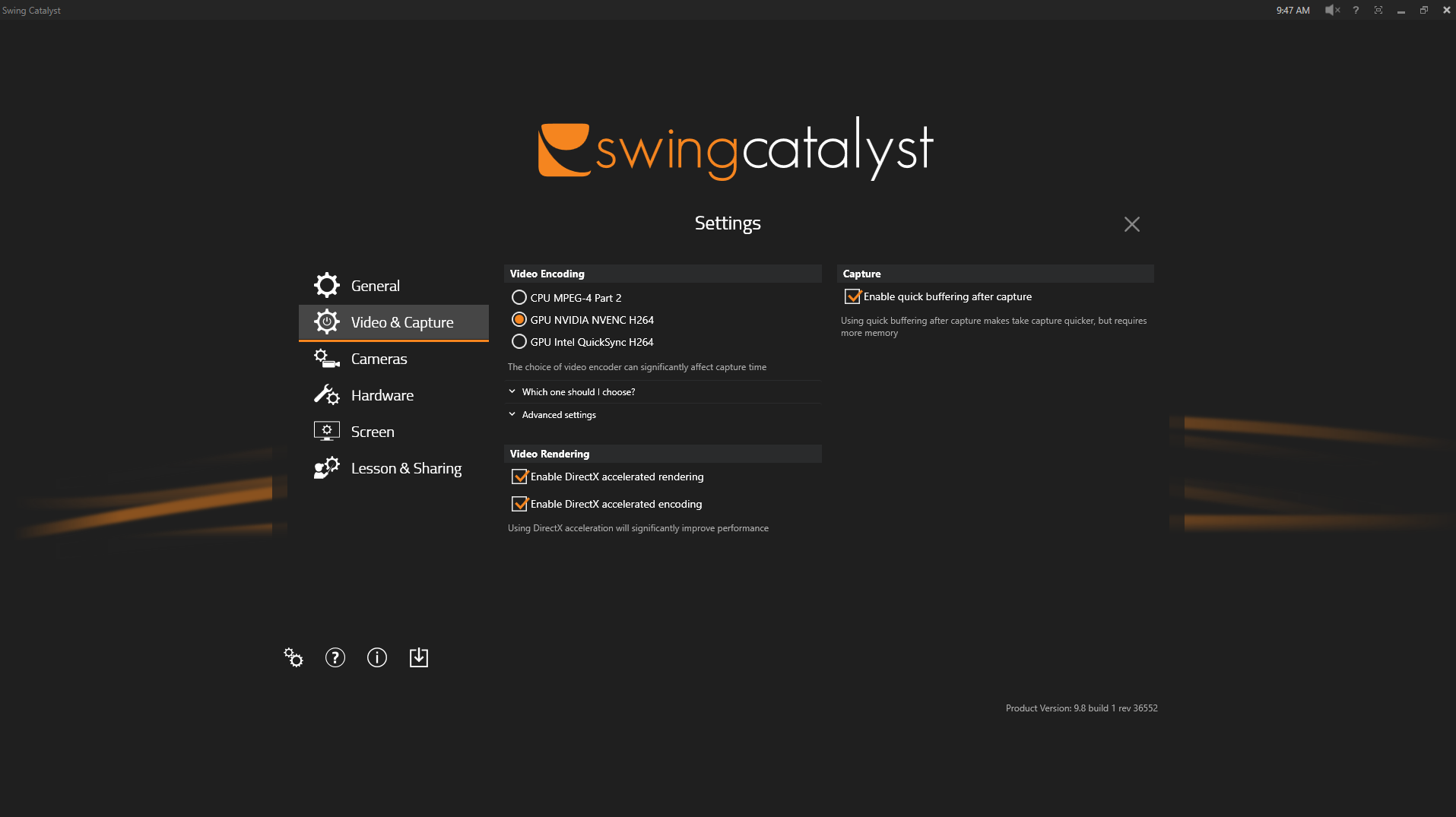
Go into capture mode and record a swing, if the swing triggers but does not complete see instructions below.
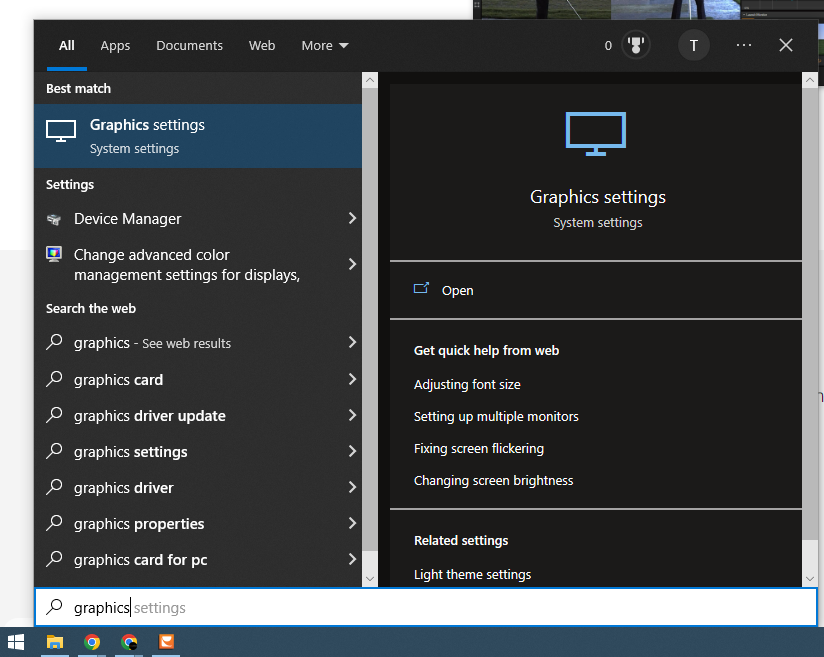
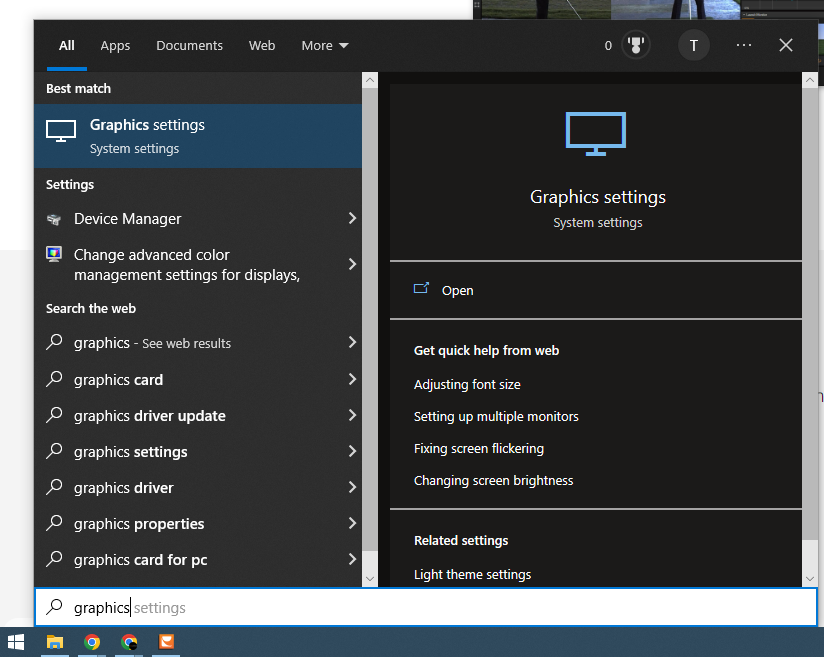
Step 1: Click your start button and search Windows for “Graphics setting”
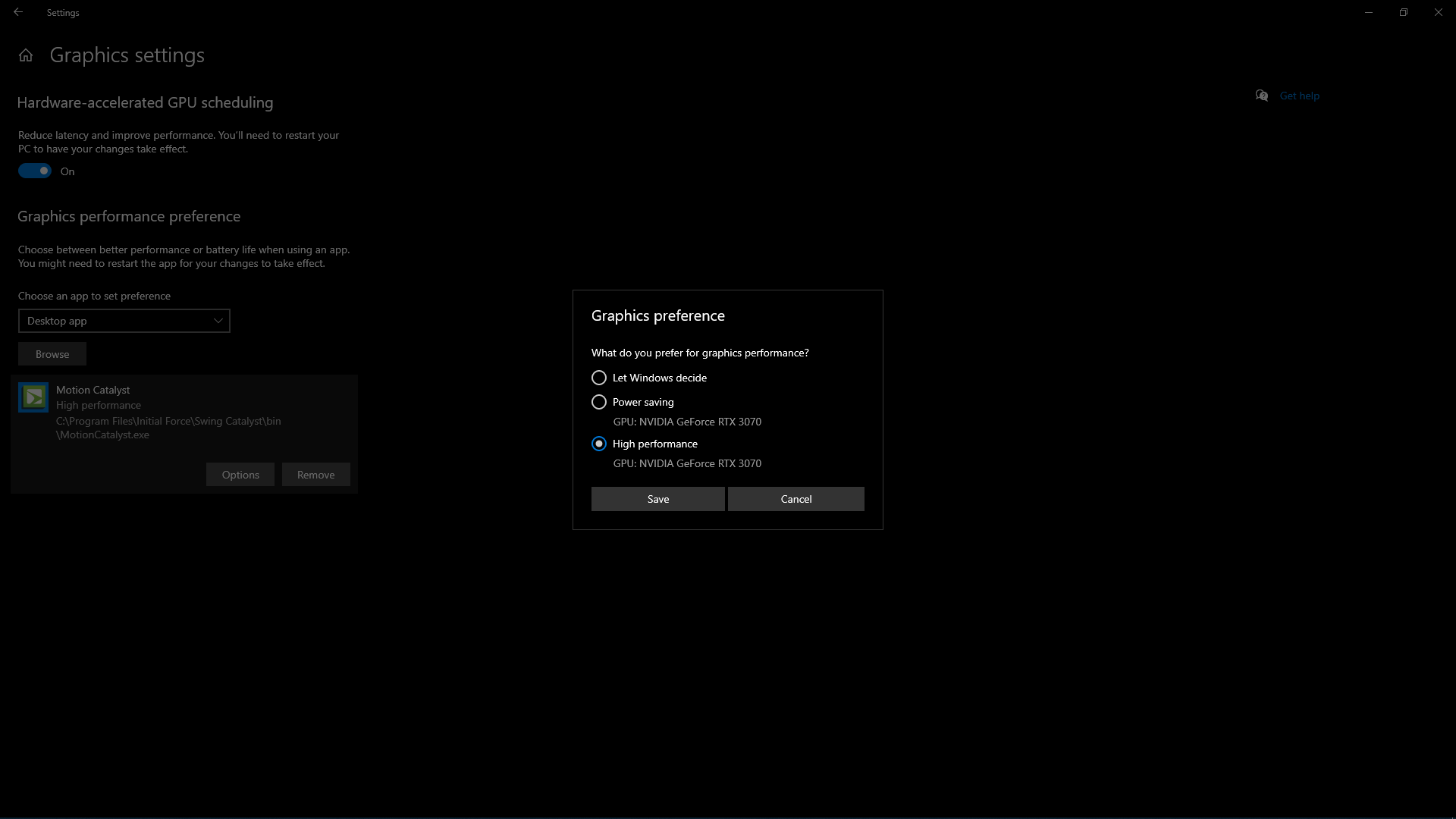
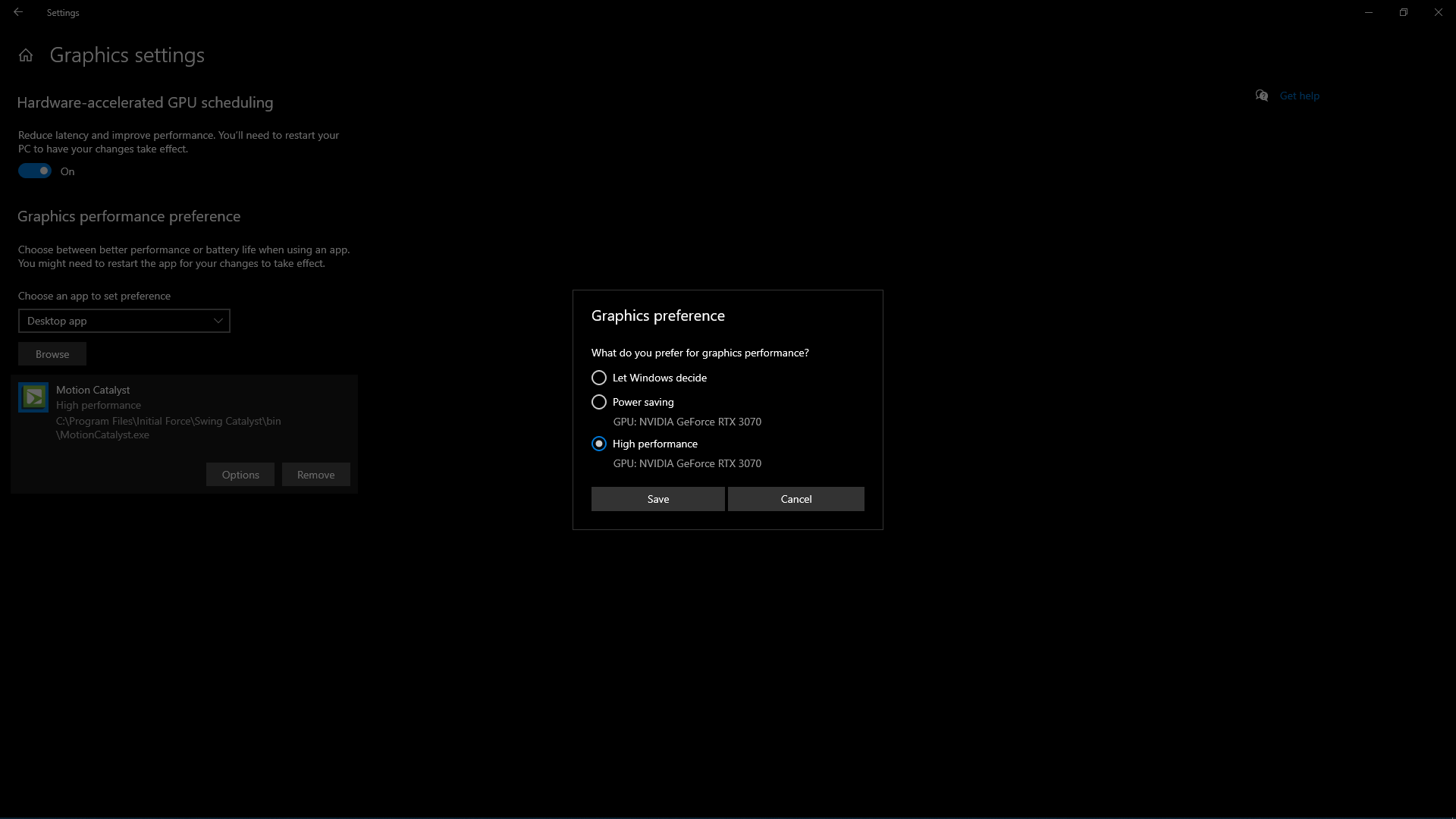
Step 2: Turn on “Reduce latency and improve performance”
Step 3: Under the Choose an app to set preference section make sure it’s set to desktop app and click browse.
Step 4: Navigate to C:\Program Files\Initial Force\Swing Catalyst\bin and highlight the MotionCatalyst.exe then click add.
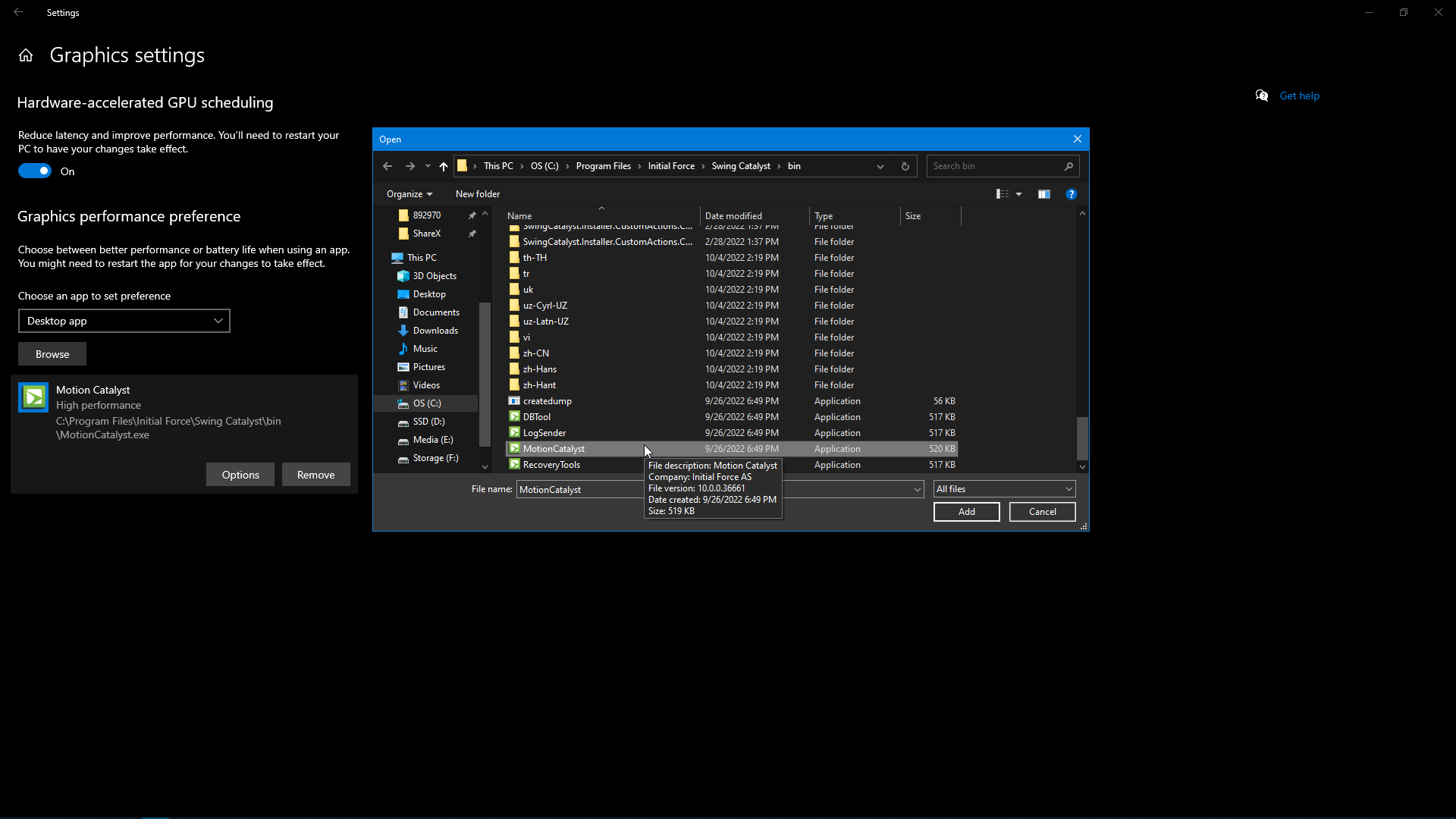
Step 5: Highlight the newly added Motion Catalyst and click “options” then select “High performance GPU: NVIDIA XXXX”
**Possible backup solution for some laptops **
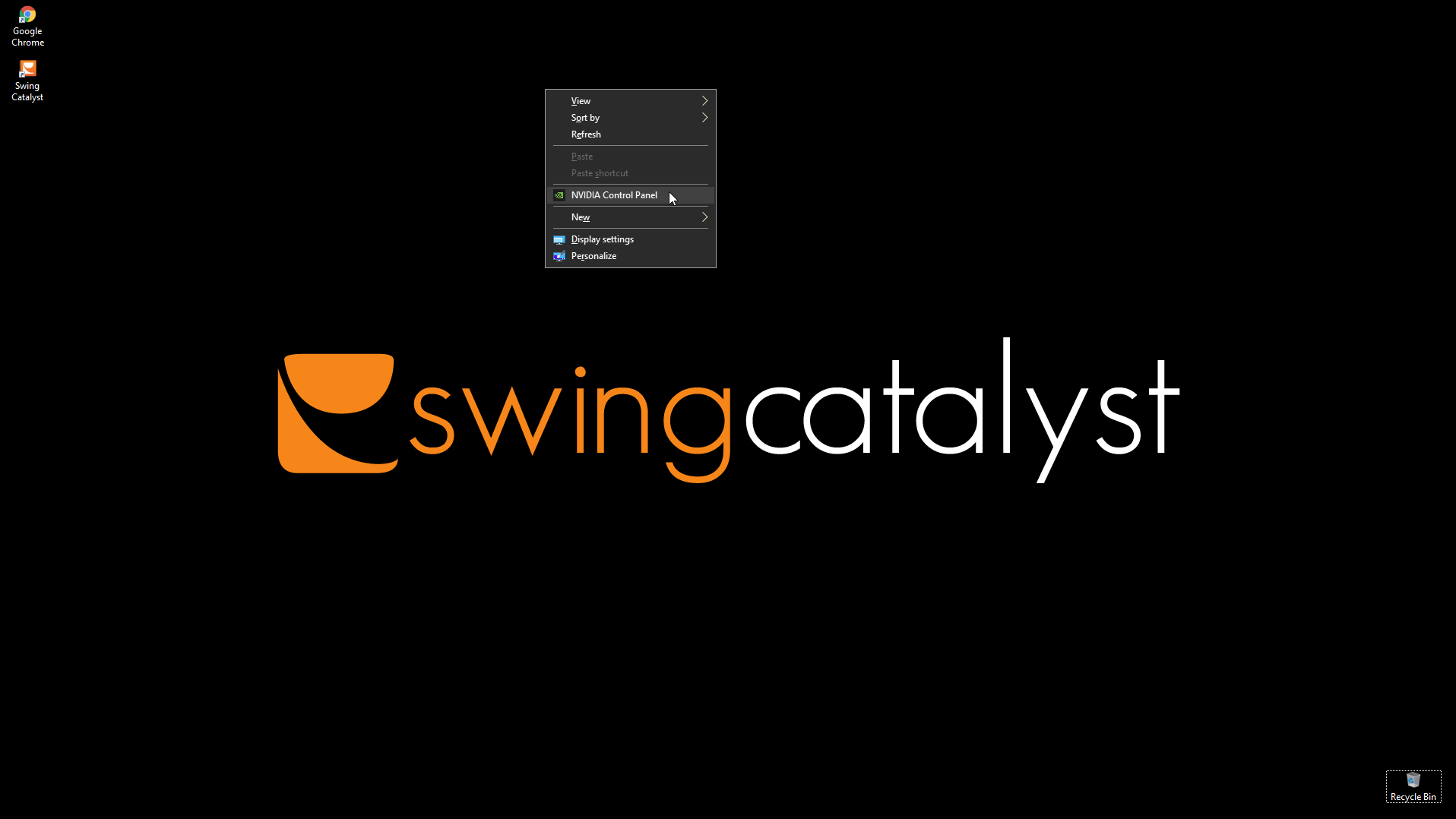
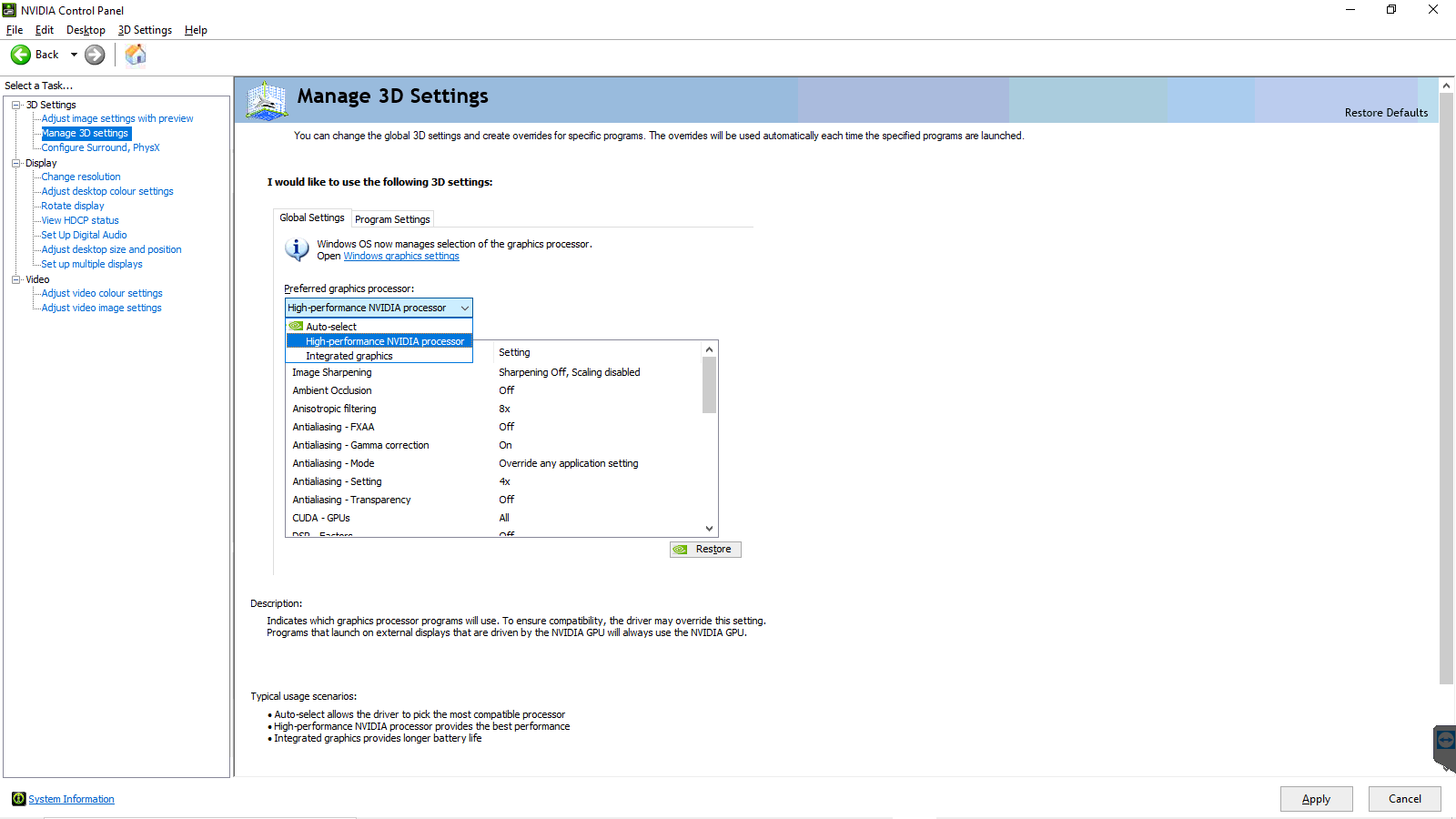
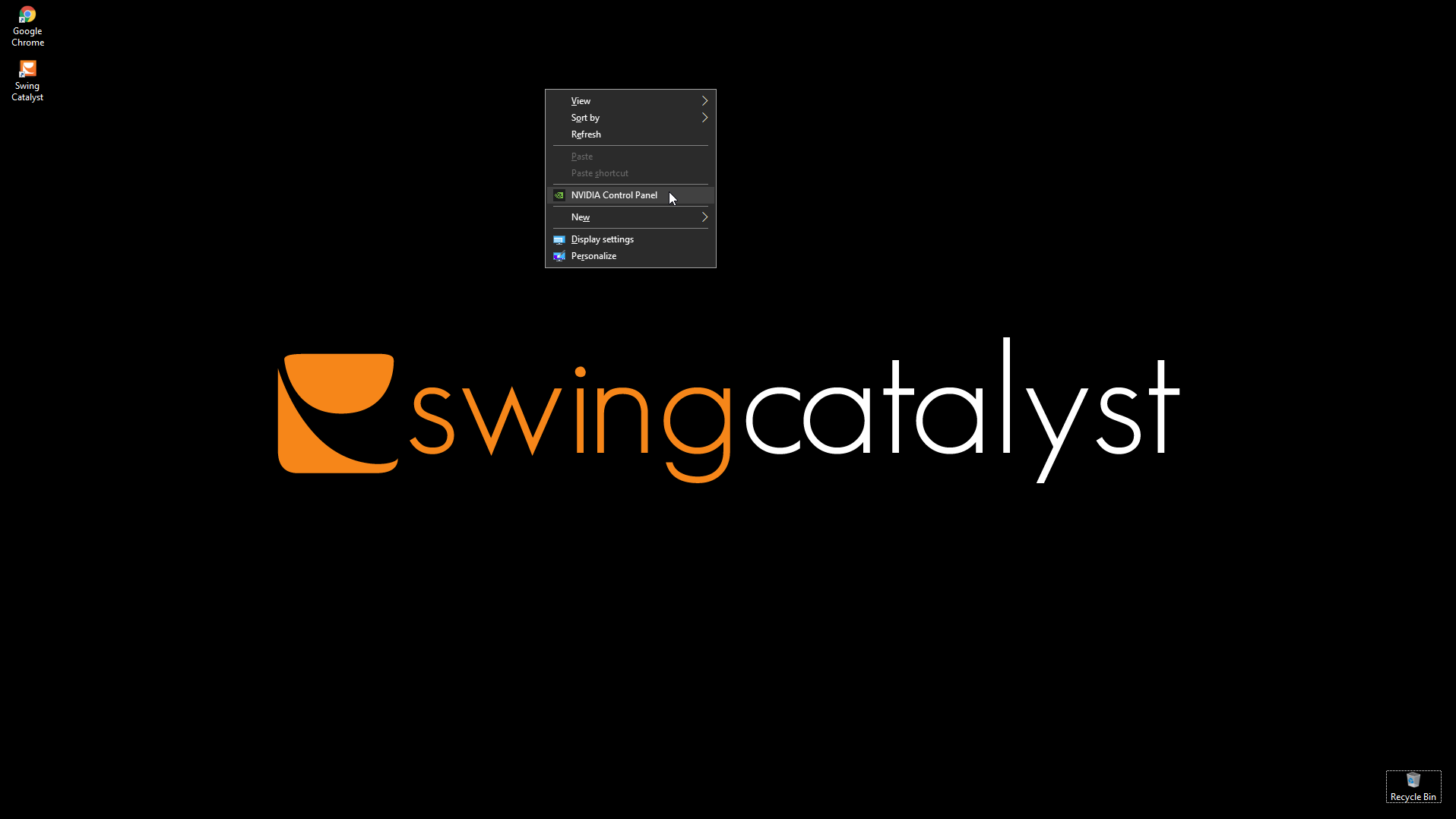
Step 1: Right click on your desktop and go to “NVIDIA Control Panel”. If it’s not present then please download and install the most recent drivers and control panel here: https://www.nvidia.com/en-us/geforce/drivers/
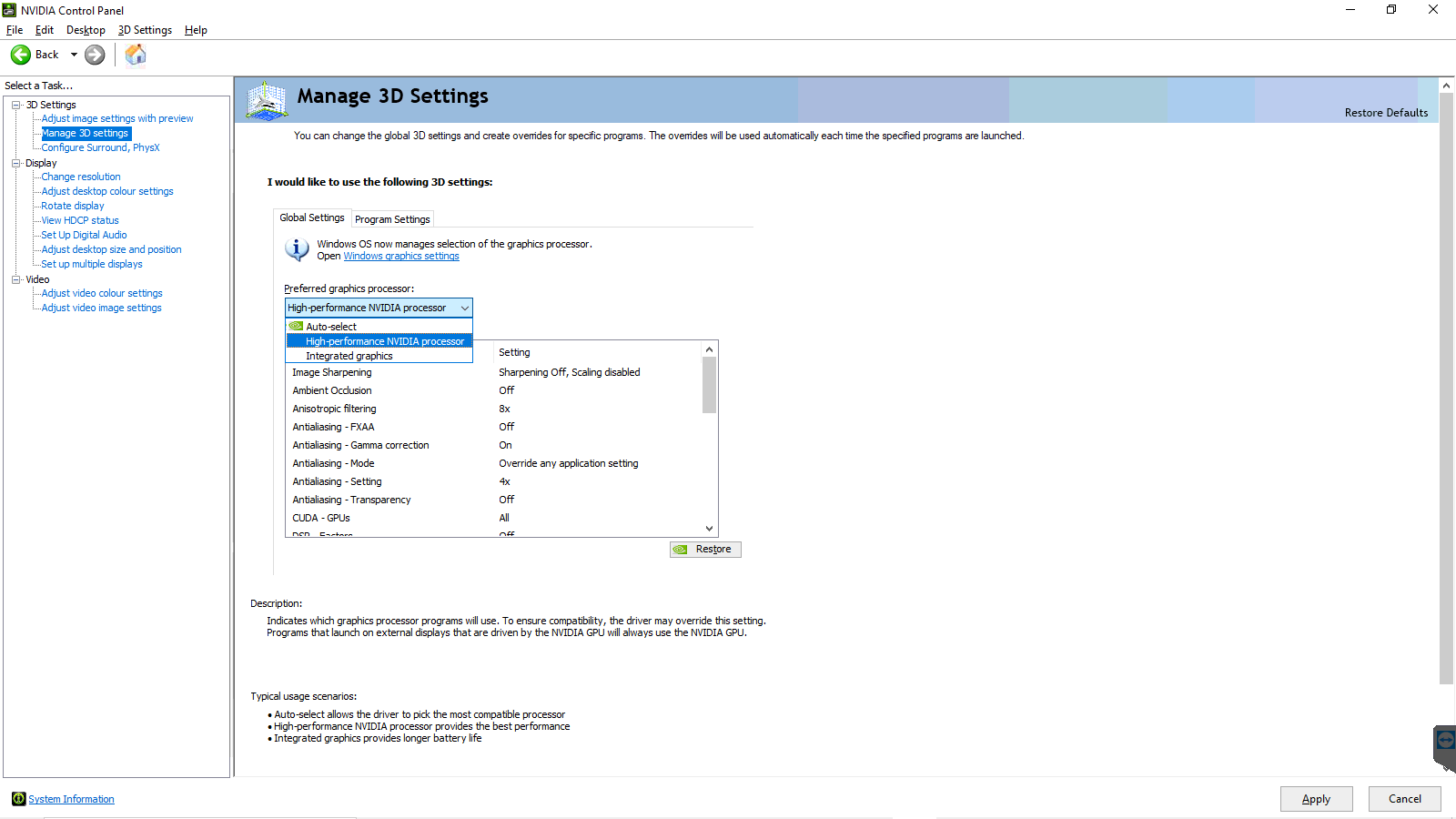
Step 2: In the control panel go to “Manage 3D settings” should be 2nd option from the top on the left hand side.
Step 3: Click the “Preferred graphics processor” drop down and change it from “Integrated graphics” to “High-performance NVIDIA processor”
Step 4: Click apply and close the control panel, open Swing Catalyst and capture another recording to see if its fixed. If not please email [email protected]
*click to enlarge