How to use Trackman with Swing Catalyst
This article describes how to connect Swing Catalyst to the TrackMan and save launch monitor data along with the video. To enable the integration the Trackman software must be running at the same time as Swing Catalyst.
Note: In order to use TrackMan with Swing Catalyst you will need to have a camera that supports streaming video. (See supported cameras )
Installation: TrackMan Pro/Launch 4.0.9
Connect TrackMan unit to PC
Start TrackMan Pro or TrackMan Launch and navigate to the shot tracking screen
Start Swing Catalyst and go to Settings - Hardware in start menu
Enable Launch Monitor integration
Select TrackMan
Installation: TrackMan Performance Studio
Supported versions 2.2-4.0

Connect TrackMan unit to PC
Start Trackman Performance Studio
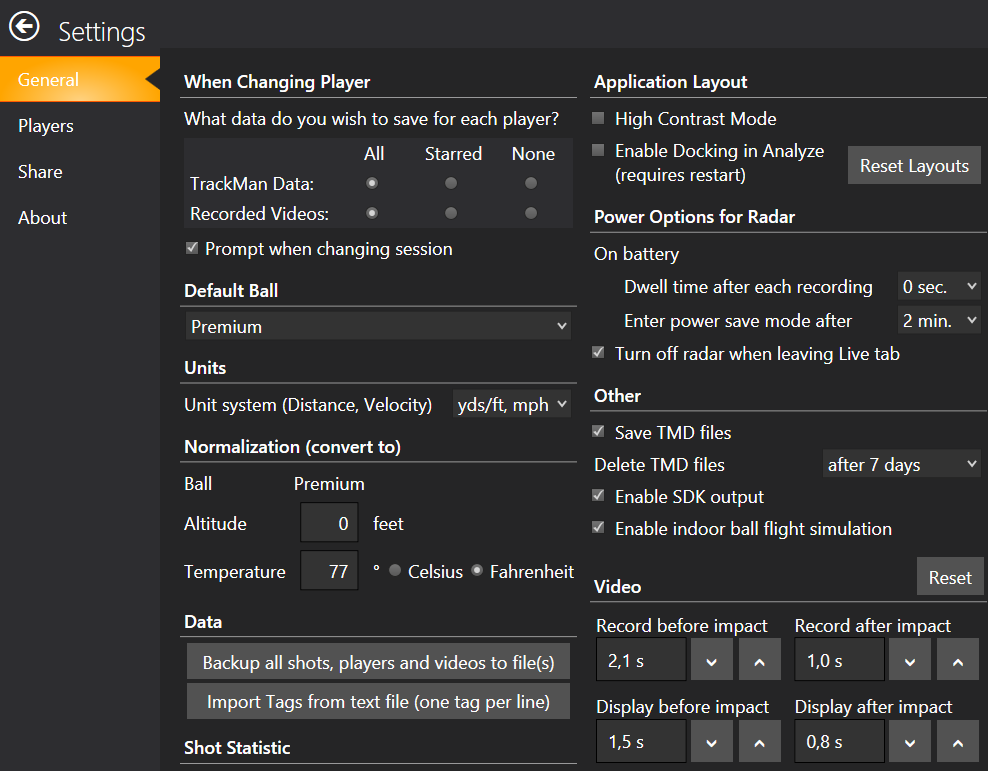
Navigate to Settings screen in start menu (Picture 1: gear symbol)
Enable **SDK Output **(Picture 2)
Navigate to Start and clickShot analysis
Start Swing Catalyst and go to Settings - Hardware in start menu
Enable Launch Monitor integration
Select TrackMan
Installation: TPS with TM3e or Trackman 4
Power on the TrackMan 3e device
Connect to the TrackMan WiFi network in Windows. Alternatively connect the USB cable.
Except for step 1, follow the same steps as in the above installation guide
Picture 1: Enabling SDK output in TrackMan Performance Studio.
Using Swing Catalyst with TrackMan Pro/Launch/Performance Studio
Start TrackMan software first and go to shot tracking screen.
Start Swing Catalyst and capture swings.
Open a recorded swing to view the shot data in a databox next to the video.
If everything was properly installed it should now automatically capture TrackMan shot data and save it along with the video.
Camera configuration
In some cases the TPS software may lock cameras on the system, causing them to be unavailable in the Swing Catalyst software.
In future version the TPS software may introduce a configuration option to disable this behavior, but in the meanwhile Trackman has provided the following workaround:
Open the TPS software and take note of the exact camera name as it appears in the camera list.
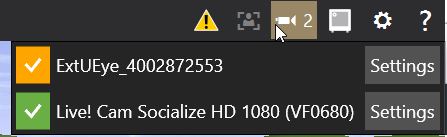
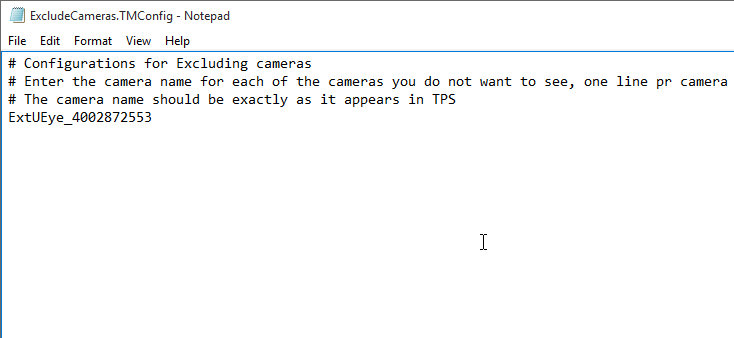
Locate the following file and open it in notepad:
C:\ProgramData\TrackMan\VideoManagement\ExcludeCameras.TMConfig
Add the camera name into the file. If you have multiple cameras add all the names, each on a separate line.
Troubleshooting
Check that Trackman is recognized and connected in TPS.
Make sure Launch Monitor is enabled and TrackMan is selected in Swing Catalyst hardware settings menu.
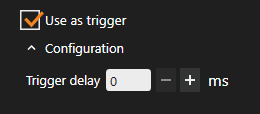
Check that “trigger” is checked below the launch monitor settings in Swing Catalyst.
If it’s still not triggering, check Settings from TPS, and make sure “SDK Output” is enabled.
Try restarting the Trackman device.
If you’re getting data and it shows up as connected in Swing Catalyst but doesn’t trigger, try restarting the computer.
It’s triggering but very late: Try to adjust the delay compensation in the Launch Monitor settings, a value of approximately 1500ms is recommended; this depends on the ball type and whether or not the radar is being used indoors our outdoors.
If you’re still not getting any data in Swing Catalyst:
Try to restart the TrackMan unit and re-check if SDK output is enabled.
Try to disable the Windows firewall, if this works add an exception for TPS and Swing Catalyst.
Check if the Trackman OEM service is running. if so disable it, and try again. More information on Windows services here: http://www.7tutorials.com/what-are-windows-services-what-they-do-how-manage-
Check out our advanced troubleshooting steps.