How to install a Balance Plate 3
How to install & setup a Balance Plate 3
Introduction
This support article will describe how to setup a new Balance Plate 3 for use with Swing Catalyst.
Requirements
Computer with a free USB port.
Swing Catalyst 7.1.8 or later.
Installation
For installation details please refer to the attached PDF at the bottom of the article.
This article covers Balance Plate 3 and Balance Plate 3s.
Only looking to run a field calibration of your plate? Click here
Warning
Some issues have been seen with AMD 300-Series chipsets (AMD Ryzen 1700 / 2700 series ) with USB 1.1 devices. Specifically with the Balance Plate, where you only get 75 samples per second instead of ~145 samples per second. We recommend using a USB 2.0 hub which will allow the Balance Plate to stream at full sample rate.
There are no known issues as far as using the AMD 300 series chipsets with USB 3.0 devices.
Driver Installation
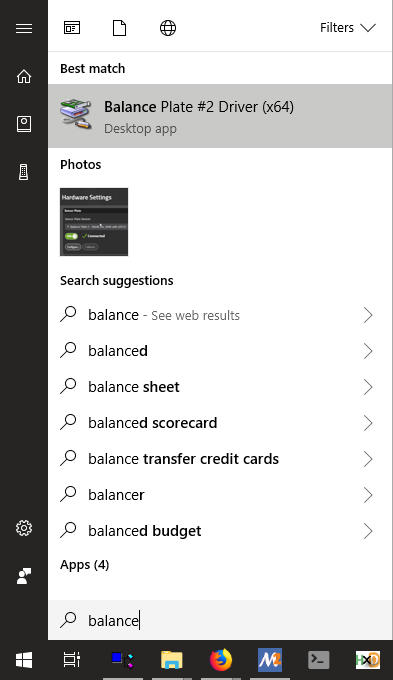
- Install the drivers from Windows Start Menu - Swing Catalyst - Drivers folder. For 64-bit Windows, run “Balance Plate #2 Driver Installer (x64)” For 32-bit Windows, run “Balance Plate #2 Driver Installer (x86)” Do I have 32-bit or 64-bit Windows?
You can also find the drivers on https://www.swingcatalyst.com/drivers
Running the calibration utility
If asked to install drivers, click yes.
Connect the Balance Plate to the computer.
Open the newly installed SE Utility
Select a camera or webcam and focus it on the Balance Plate.