How to install Balance Plate 3S
How to install & setup a new Balance Plate 3s
Introduction
This support article will describe how to setup a new Balance Plate 3s.
Requirements
Computer with a free USB port.
Swing Catalyst 9.3.0
This article also covers the Balance Plate 3 XL plate and Balance Plate 3.
If you wish to calibrate your plate please click here.
Installation
For installation details please see the attached PDF at the bottom of this article.
Driver Installation
- Install the drivers from Windows Start Menu - Swing Catalyst - Drivers folder. For 64-bit Windows, run “Balance Plate #2 Driver Installer (x64)” For 32-bit Windows, run “Balance Plate #2 Driver Installer (x86)” Do I have 32-bit or 64-bit Windows?
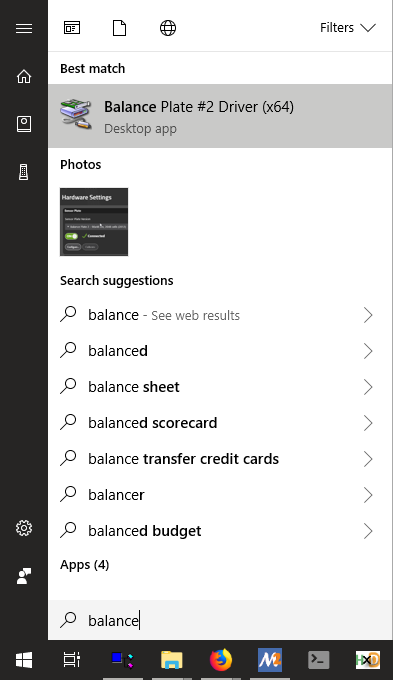
You can also find the drivers on https://www.swingcatalyst.com/drivers
Running the calibration utility
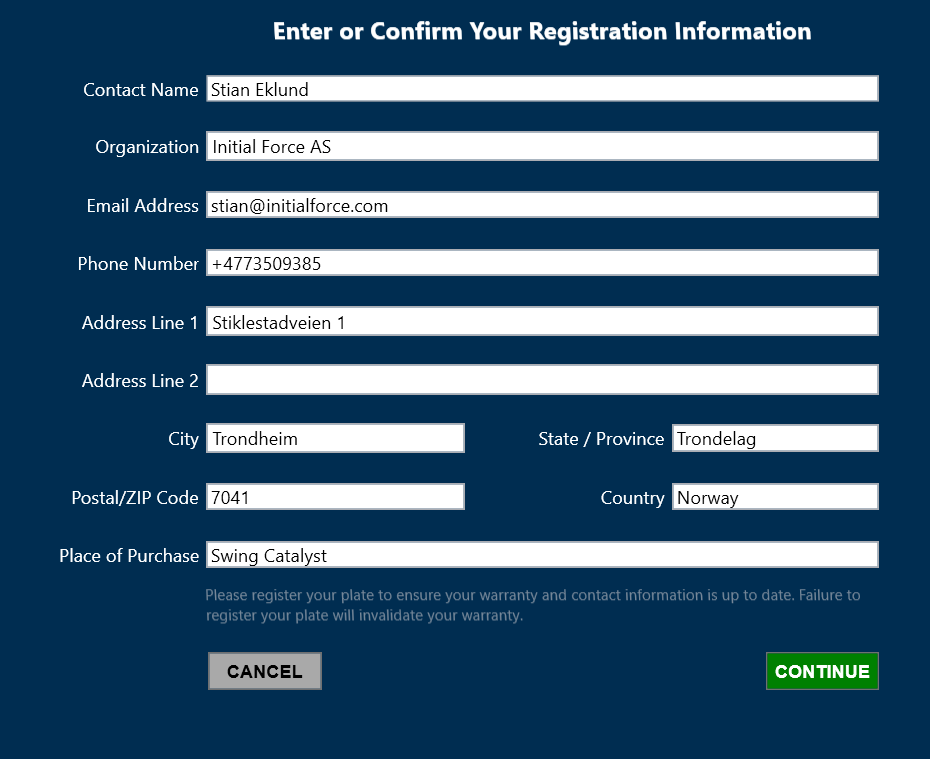
In order to use your Balance Plate it needs to be registered with the manufacturer for warranty purposes.
After registration you will receive the calibration file which is to be installed in Swing Catalyst.
Steps
If asked to install drivers, click yes.
Connect the plate to the computer.
Open the newly installed SE Utility
Follow the instructions below.
Make sure you have a monitor or TV connected to your computer so you can see the screen when standing on the Balance Plate.
Click Start:
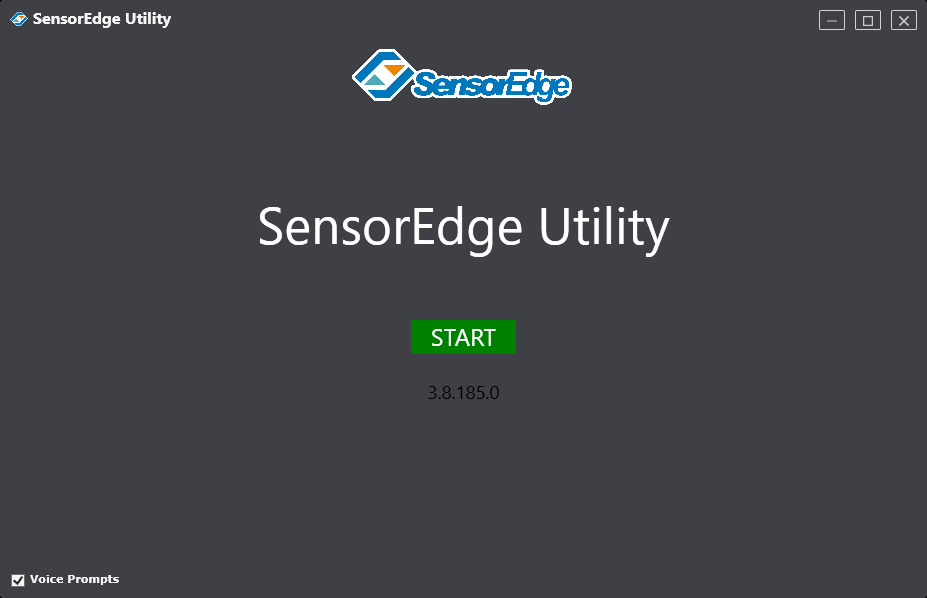
After clicking start it will automatically attempt to scan for devices, if it does not find your plate, click the drop down menu and select your Balance Plate.
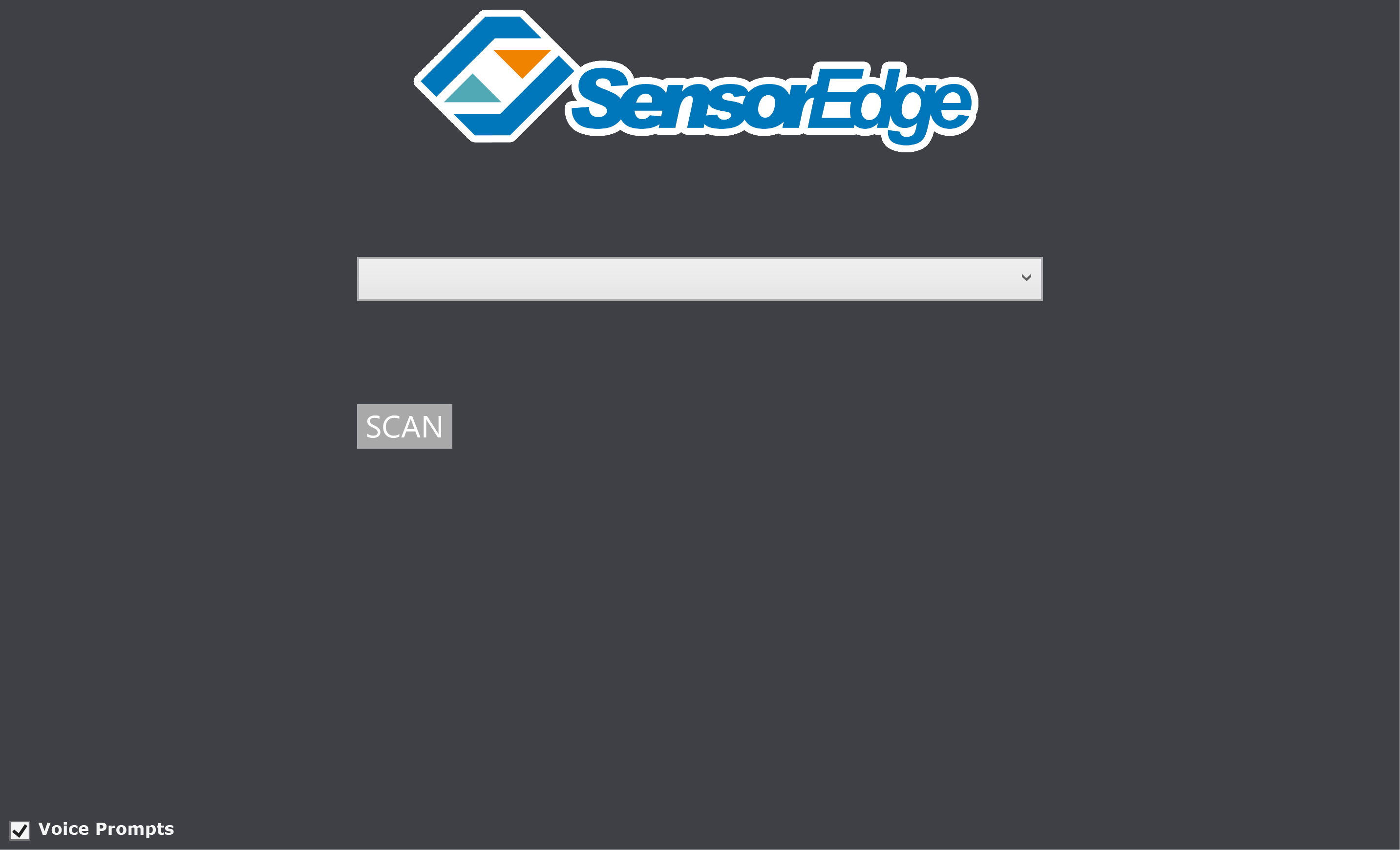
Click Scan
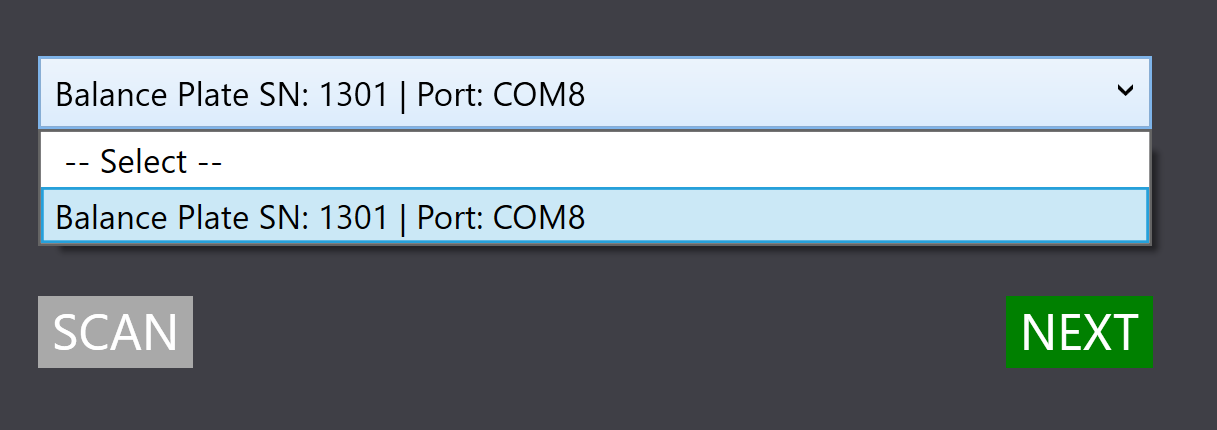
Select the device that matches your plate’s serial number and click Next.
Registering your Balance Plate
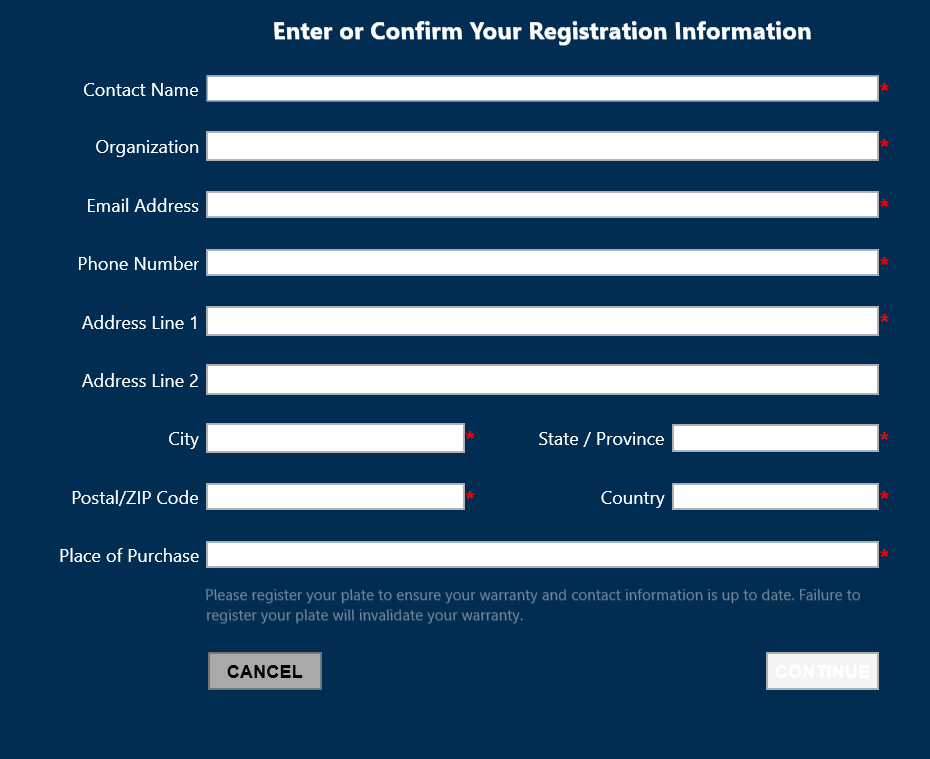
Example of filled out registration information