Swing Catalyst Motion Capture User Guide
Swing Catalyst Motion Capture (MoCap) Guide
Introduction
Swing Catalyst Motion Capture (MoCap) is a powerful 2D markerless motion capture system designed to enhance your golf swing analysis. This feature provides near real-time tracking, movement analysis, and advanced visualization tools to help improve your game.
Info
Motion Capture functionality may not be available for all license types. Please refer to our FAQ for more information.
Quick Links
System Requirements
Essential Components:
Valid Swing Catalyst Pro or Pro+ license
Swing Catalyst version 25.1 or newer
Required components installed in the components directory
Compatible computer meeting our recommended specifications
One or more compatible cameras
Initial Setup and Configuration
Recommended Setup Steps:
Install required components following our installation guide
Configure settings using our detailed settings guide
Ensure your cameras are well positioned (see video below)
- Perform automatic lens calibration for optimal accuracy to mitigate lens distortion
Factors Affecting Accuracy
Key Considerations
Camera Quality and Setup High-resolution, stable footage is essential for accurate tracking. Avoid low-quality or unstable camera setups.
Lighting Conditions Ensure consistent, well-distributed lighting. Avoid flickering lights and strong shadows.
Optimal Camera Angles Best results achieved from:
Face-on right
Face-on left
Down the line (with proper lighting)
Be aware of:
Reduced accuracy with occluded body points or if FP16 is enabled for TensorRT.
DLP projectors or flickering lighting can adversely affect the accuracy, especially for the down the line view, see our article on how to mitigate flicker
Getting Started
Enabling Motion Capture
Make sure you have followed the recommended setup steps and have installed the required components before proceeding.
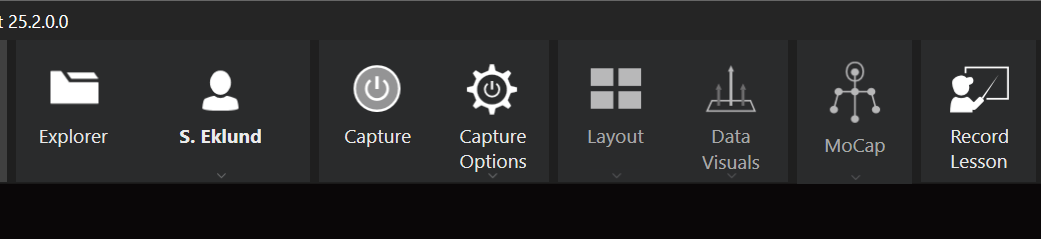
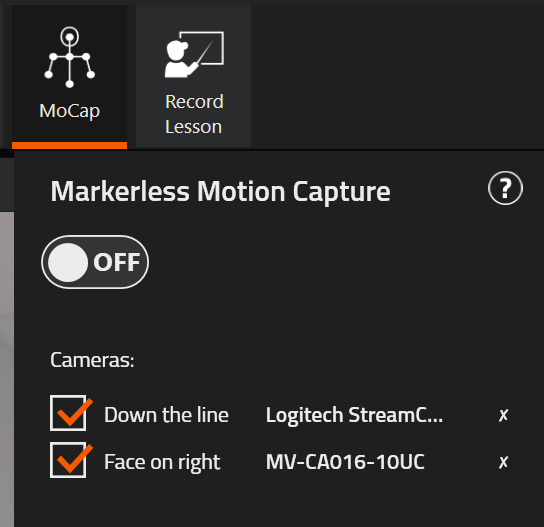
Locate the MoCap button in the top toolbar
Click to toggle the feature ON.
Verify that it’s working by turning on the skeleton view.
MoCap Toolbar Features
View Controls
Toggle skeletal overlay visibility
Show/hide Center of Mass (COM) marker
Analysis Tools
Marker Angle Tool Measure and display joint angles by selecting specific markers
Marker Trace Tool Track and visualize movement paths of selected points
Line Tool Create reference lines between any two markers for plane analysis
Clear Tool Remove all active measurements and visualizations
Visualization Examples
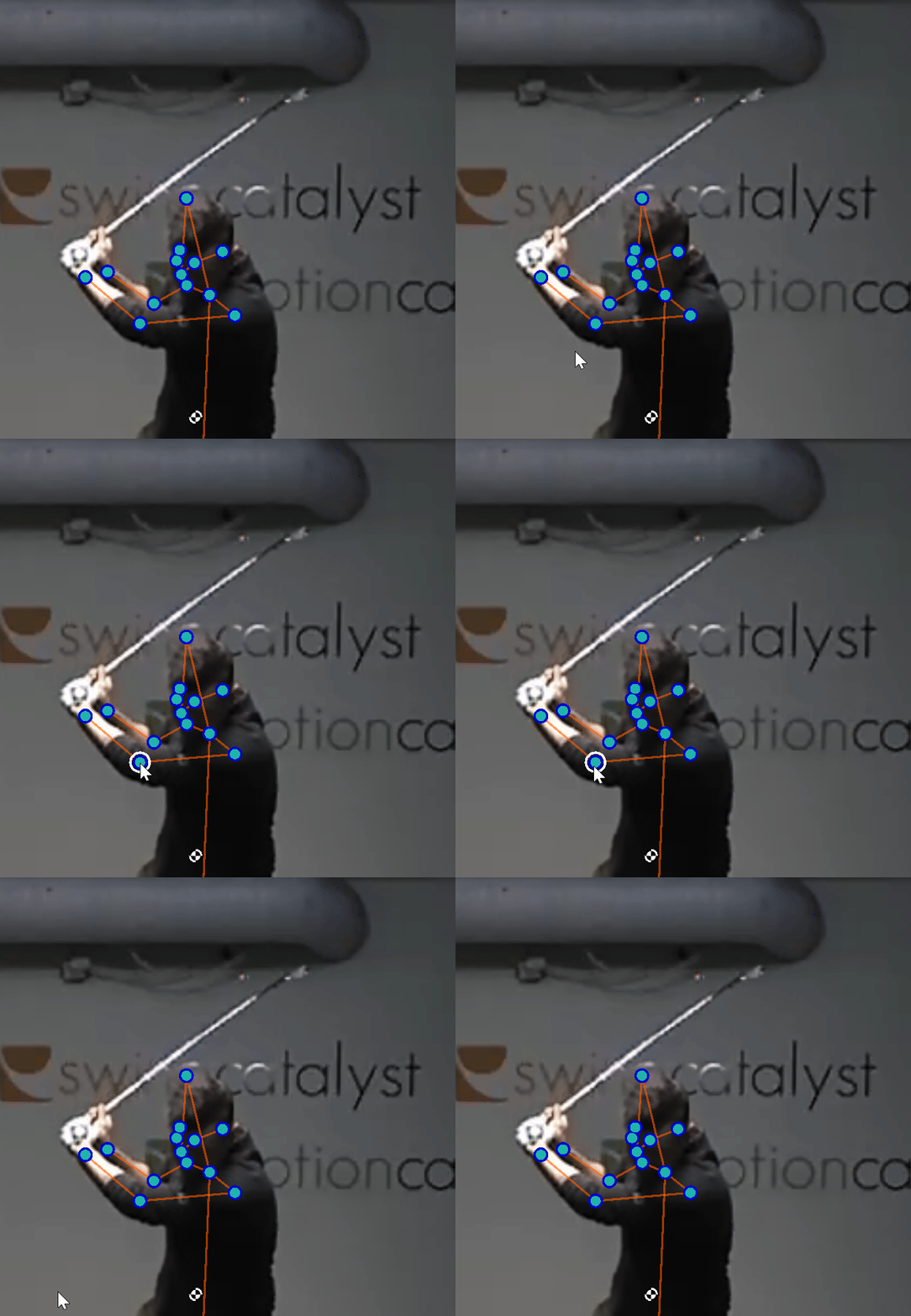
Clickable key points: Identifiable by the white indicator when you hover the mouse over the key point.
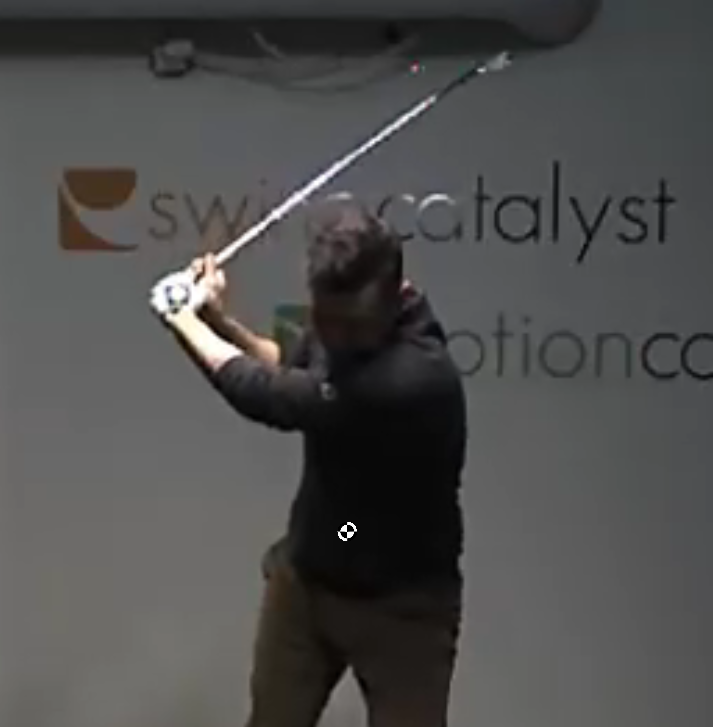
Center of Mass Tracking: Isolated COM marker display with skeleton hidden
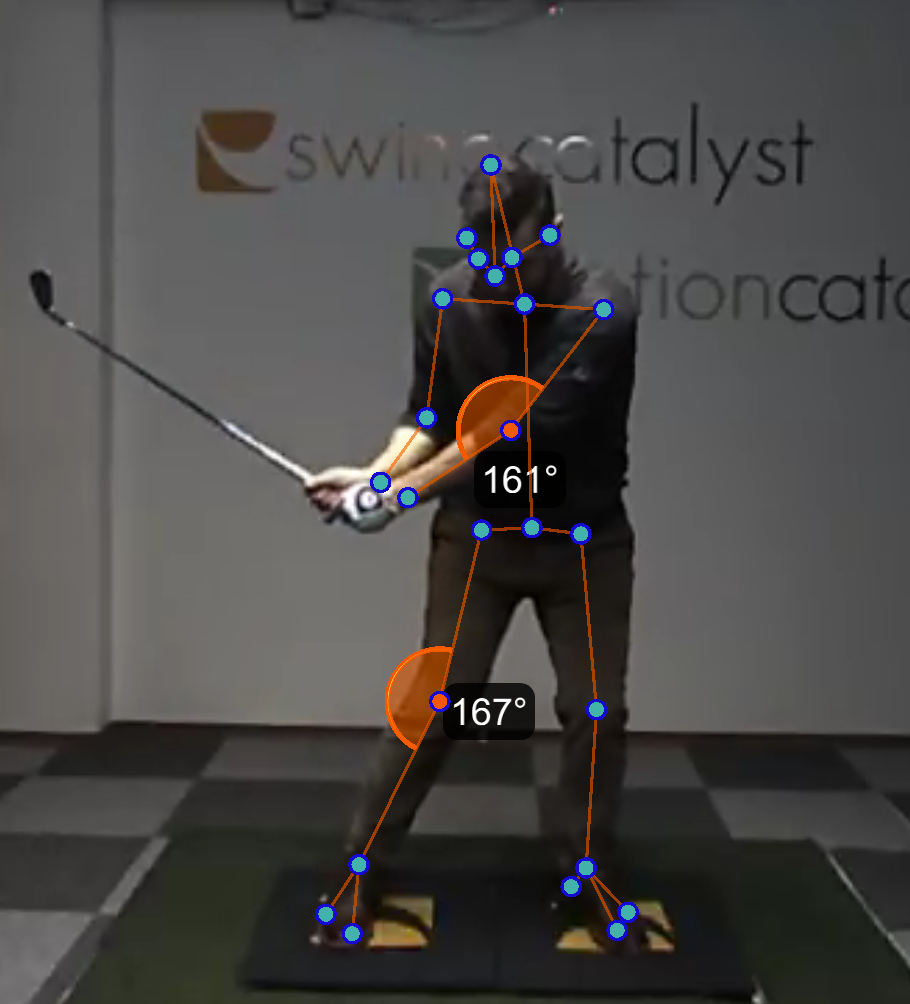
Joint Angle Analysis: Real-time angle measurements with skeletal overlay
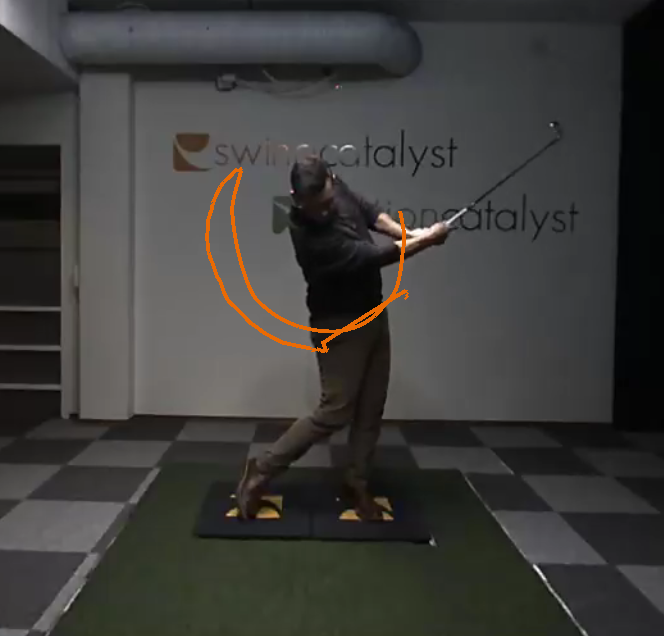 Movement Tracing: Wrist movement path visualization
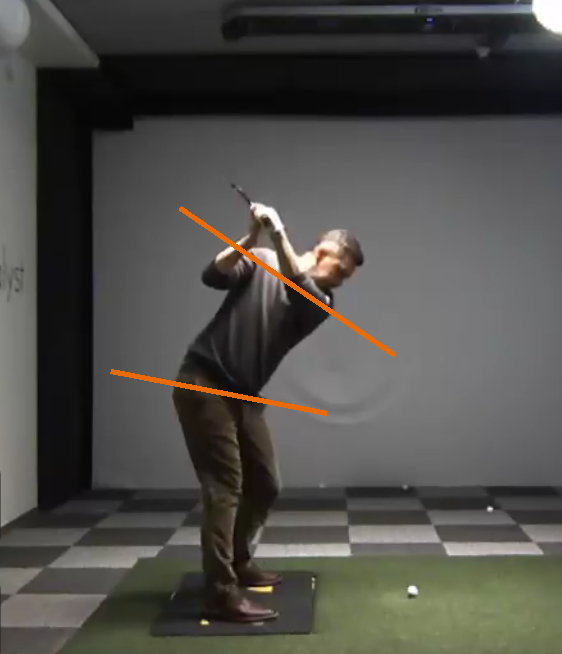 Plane Analysis: Custom reference lines for movement study
Adding Motion Capture To Existing Recordings
If you have an existing recording without Motion Capture data, you can retroactively run a MoCap analysis on it by doing the following:
Find the recording you wish to add MoCap to in the Explorer and open it
Click the Motion Capture button on the analysis menu to open a drop down menu
Click the “Process MoCap” button
Please be advised that performing motion capture analysis can take several minutes, especially for the first time, as Swing Catalyst needs to load the required Motion Capture data models. During this time, it is not advised to exit the analysis mode or starting capture, as the processing requires a lot of hardware resources and puts a strain on the GPU (graphics card). Performance might be affected during this time.
After the models have been loaded, the actual analysis process will begin and you will get a progress bar showing the current progress of the analysis.
If you wish to cancel the MoCap processing, please click the “Cancel” button in the MoCap dropdown menu. Please be aware that this button is not available while Swing Catalyst is loading the MoCap models, as this process cannot be cancelled.
When the processing is finished a message toast will show at the top of the screen and motion capture will be automatically be enabled for the open recording.
If you wish to re-run motion capture analysis at a later point, perhaps with different motion capture settings (available in: Settings -> Video & Capture), you can click the “Reprocess MoCap” button in the MoCap drop down menu while having the recording open in analysis mode.
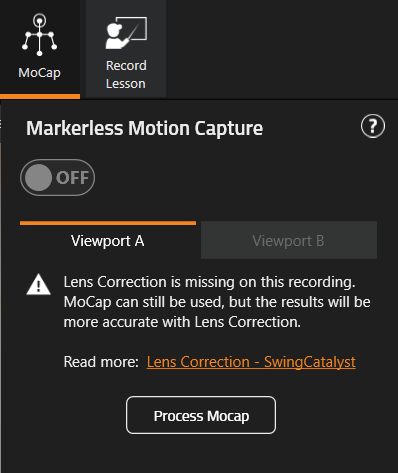
Markerless Motion Capture settings for open recording without MoCap data
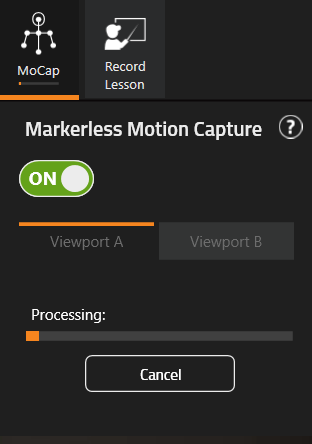
Motion Capture being processed for open recording
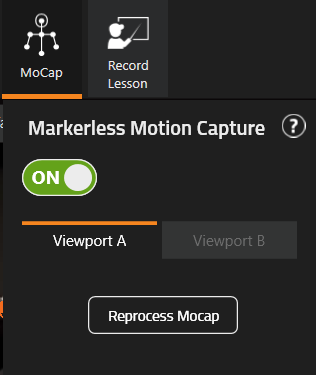
Markerless Motion Capture settings for open recording with MoCap data
Troubleshooting
If you encounter issues with the Swing Catalyst Motion Capture (MoCap) system, consider the following common problems and their solutions:
1. MoCap Feature Not Available
Issue: The Motion Capture functionality is not accessible.
Solutions:
License Verification: Ensure you have an active Swing Catalyst Pro or Pro+ subscription, as MoCap requires these license types.
Software Version: Confirm that your Swing Catalyst software is updated to version 25.1 or newer, which includes the MoCap feature.
2. Slow Processing Times
Issue: Recordings take longer than expected to process when MoCap is enabled.
Solutions:
Execution Provider: Select the optimal execution provider for your hardware.
For NVIDIA GPUs, TensorRT is recommended for best performance.
- Try to enable FP16 for TensorRT (but we aware the accuracy may be reduced).
Batch Size: Adjust the batch size in the MoCap settings. A batch size of 32 is optimal, but if you experience memory issues, consider reducing it.
Hardware Specifications: Verify that your system meets the recommended specifications, particularly the GPU requirements. Upgrading to a more powerful GPU can enhance processing speeds.
3. Skeleton Not Visible
Issue: The skeletal overlay does not appear during recordings.
Solutions:
Person Detection: Person detection may be failing. Try toggling the capture mode off and on, or disable and re-enable MoCap.
Detection Model: If using the Nano detection model, switch to the Medium model for improved accuracy. Restart Swing Catalyst after making this change.
Camera Setup: Ensure your cameras are correctly positioned and calibrated according to the recommended guidelines. Proper camera setup is crucial for accurate person detection.
4. Inaccurate Motion Capture Data
Issue: The captured motion data is inaccurate or inconsistent.
Solutions:
Lighting Conditions: Maintain consistent and well-distributed lighting in the recording area. Avoid flickering lights and strong shadows, as they can affect detection accuracy.
Camera Quality: Ensure the cameras don’t move around during recording as it can can lead to poor tracking results. Consider the your framing, is the camera positioned and lens setup correctly?
Execution Provider Settings: If you have TensorRT enabled and “FP16 for TensorRT” is checked, consider unchecking it to see if the accuracy improves.
- If inaccuracies persist, consider creating a support ticket with us.
5. Motion Capture processing fails
Issue: Processing fails
Solutions:
Execution Provider: Try to change the execution provider. DirectML has best compatibility.
**Memory Consumption:**Make sure you’re not running out of memory.
Open the Windows Task manager and go to the Performance tab.
Monitor the memory usage and GPU memory usage to see if you might be running out of memory.
If you are running out of memory try using a lower batch size or try “FP16 for TensorRT” if you’re using the TensorRT execution provider.
**Computer Specifications:**Is your computer good enough to run MoCap ?
**Lowering Camera Frame Rate:**Lowering the frame rate reduces the amount of frames processed which can reduce the system load.
**Turning off MoCap:**Try turning off the MoCap feature to see if the error perhaps is not related to the MoCap feature itself.