How to install Swing Catalyst Motion Capture components
Swing Catalyst Motion Capture (MoCap) Components Installation Guide
Important Notice
This feature requires a specific license type. Please check our FAQ for licensing details.
If you have received a self contained version for testing, you do not need to install any additional components.
Quick Links
Overview
This guide walks you through installing the necessary components to optimize Swing Catalyst Motion Capture performance. These components are specifically required for CUDA and TensorRT execution providers. Note that DirectML users can skip this installation as no additional components are required.
System Requirements
License Requirements
Valid Swing Catalyst license with Motion Capture functionality
Storage Requirements
Minimum 5.9 GB free space on C: drive
Hardware Requirements
NVIDIA graphics card supporting CUDA or TensorRT (GeForce or RTX series GPU), such as:
NVIDIA RTX 3070, 3080, 3090 series (minimum 6GB VRAM)
NVIDIA RTX 4060, 4070, 4080, 4090
NVIDIA RTX 5070, 5080, 5090
Other NVIDIA graphics cards may work as well.
Installation Process (Swing Catalyst 25.2 or newer)
Step 1: Start Swing Catalyst
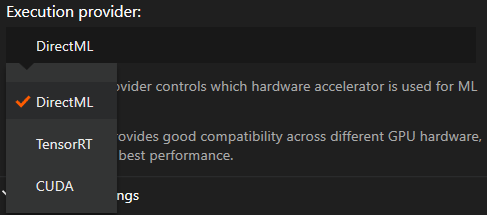
Go to Settings -> Video & Capture
In the Motion Capture section, select TensorRT.
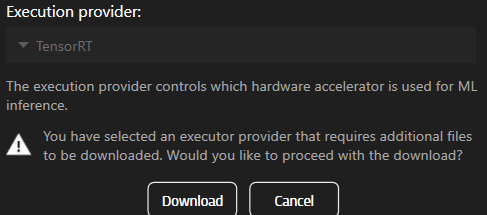
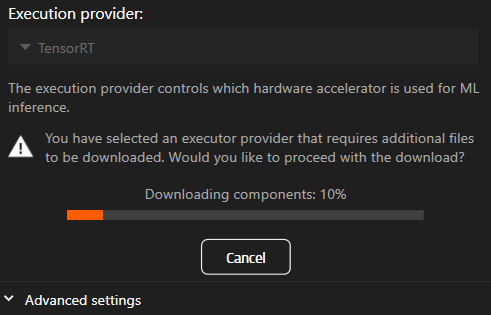
Click the Download button.
Step 2: Compiling the engine
Once the download is finished it will load TensorRT which may take a few minutes, wait for it to complete (the spinner indicator on the MoCap button will disappear).
When completed go to capture mode and make a recording, this will make the TensorRT engine compile and optimize itself for your hardware. This process may take around 10-15 minutes depending on hardware.
Installation Process (Swing Catalyst 25.1 only)
Step 1: Download Required Components
Step 2: Run downloaded installer
Run the installer file
Navigate to your downloads directory and run the installer file
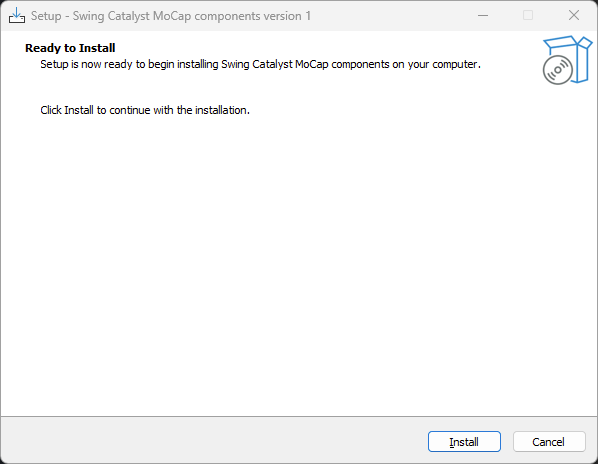
- Click “Install”
Install the components
Follow the on-screen instructions
- The components installer will install the necessary components in the C:\ProgramData\Swing Catalyst\components directory
Installation Reference
The components should now be installed.
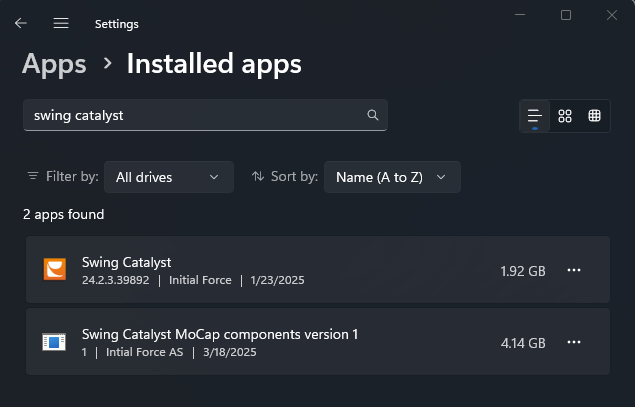
To remove the components you can uninstall them from “Installed Apps” in the Windows Settings.