What are bookmarks?
Introduction
This support article aims to describe what bookmarks are in Swing Catalyst and Motion Catalyst, and what they are used for. There are some differences between Motion Catalyst and Swing Catalyst, but the fundamentals around how the bookmarks function and their features are the same, meaning this article can be used for both software’s.
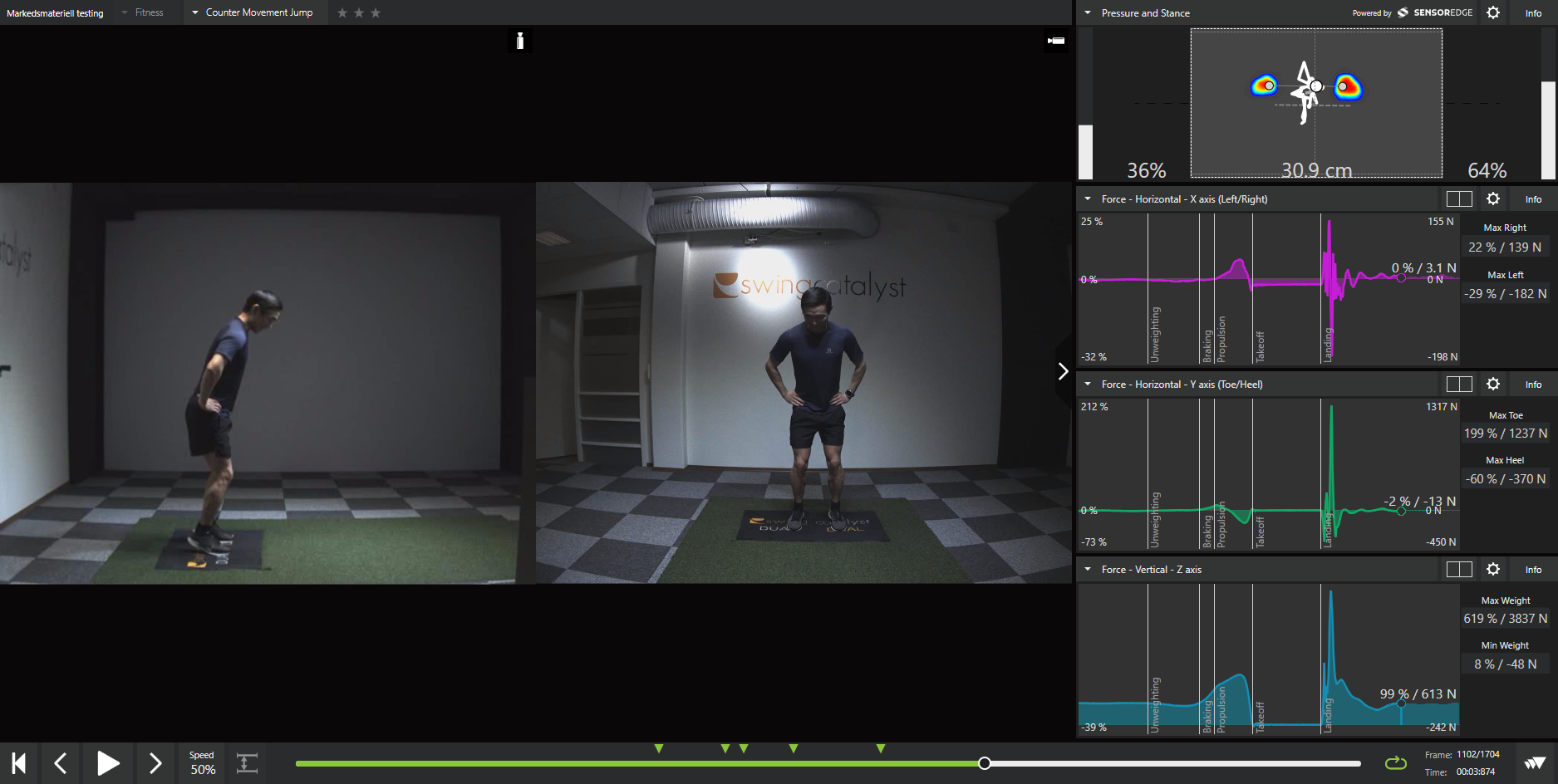
Example screenshot from Motion Catalyst of a counter movement jump recording
What are bookmarks?
Bookmarks are used to identify key points in a recording. For certain sports & activities, the bookmarks correlate to specific phases in the activity, or simply indicate start and end of movement.
For counter movement jump (as pictured), these phases are: unweighting, braking, propulsion, takeoff, and landing.
If we look more closely the screenshots above, we see that there are a number of arrows above the playback timeline, each arrow, or bookmark, correlate to different phases of the recorded activity.

The number of bookmarks available depend on the activity. Certain activities have more bookmarks than others. Additionally, bookmarks are set automatically for certain activities where the phases are identified from force data. We are working to improve this, so the list below is subject to change.
Currently the sports and activities that have automatic bookmarks set by key metrics are:
| Sport / Activity | Default Bookmarks |
|---|---|
| Fitness — Counter Movement Jump | Automatic |
| Fitness — Squat Jump | Automatic |
| Fitness — Isometric mid-thigh pull | Automatic |
| Fitness — Dynamic & Static balance | Automatic |
| Fitness — Upper Body Plank | Automatic |
| Ski jump | Automatic |
| Baseball — Batting | Automatic |
The bookmark positions are stored in the database for each recording and in any exported take (recording with data) file.
How do I set bookmarks?
To change or manually set the bookmark positions:
“Unlock” the bookmarks by pressing the “bookmarks” button.
Once selected you can change the position of the bookmarks by dragging the arrow(s).
When finished, make sure to “lock” the bookmarks again by deselecting the “bookmarks” icon, exiting the “edit bookmark” mode.
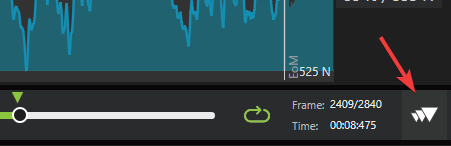
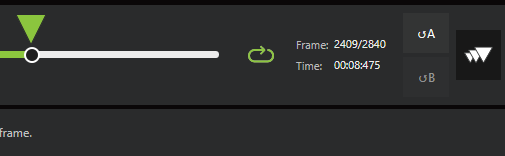
To reset the positions click the “reset A” (or B) button(s) (shown to the left of the bookmarks button).
Grey bookmarks indicate that they haven’t been set, or changed.

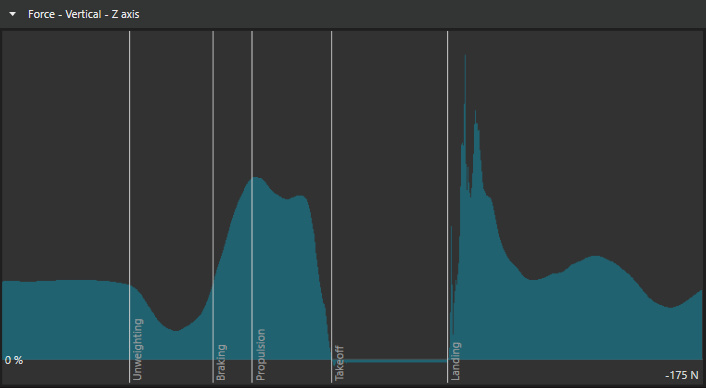
The bookmarks are also represented in the data graphs as vertical lines, indicating where in the recording the different phases are in time (X axis of the graph):
Tip
The position of the first and (or) last bookmark decide how much data is displayed in the databoxes. The duration before the first bookmark and after the last bookmark depends on the activity and sport, but changing this manually can be helpful to view certain parts of a recording. This is especially helpful for recordings done under the “free movement” activity, which can be up to 30 seconds in duration.
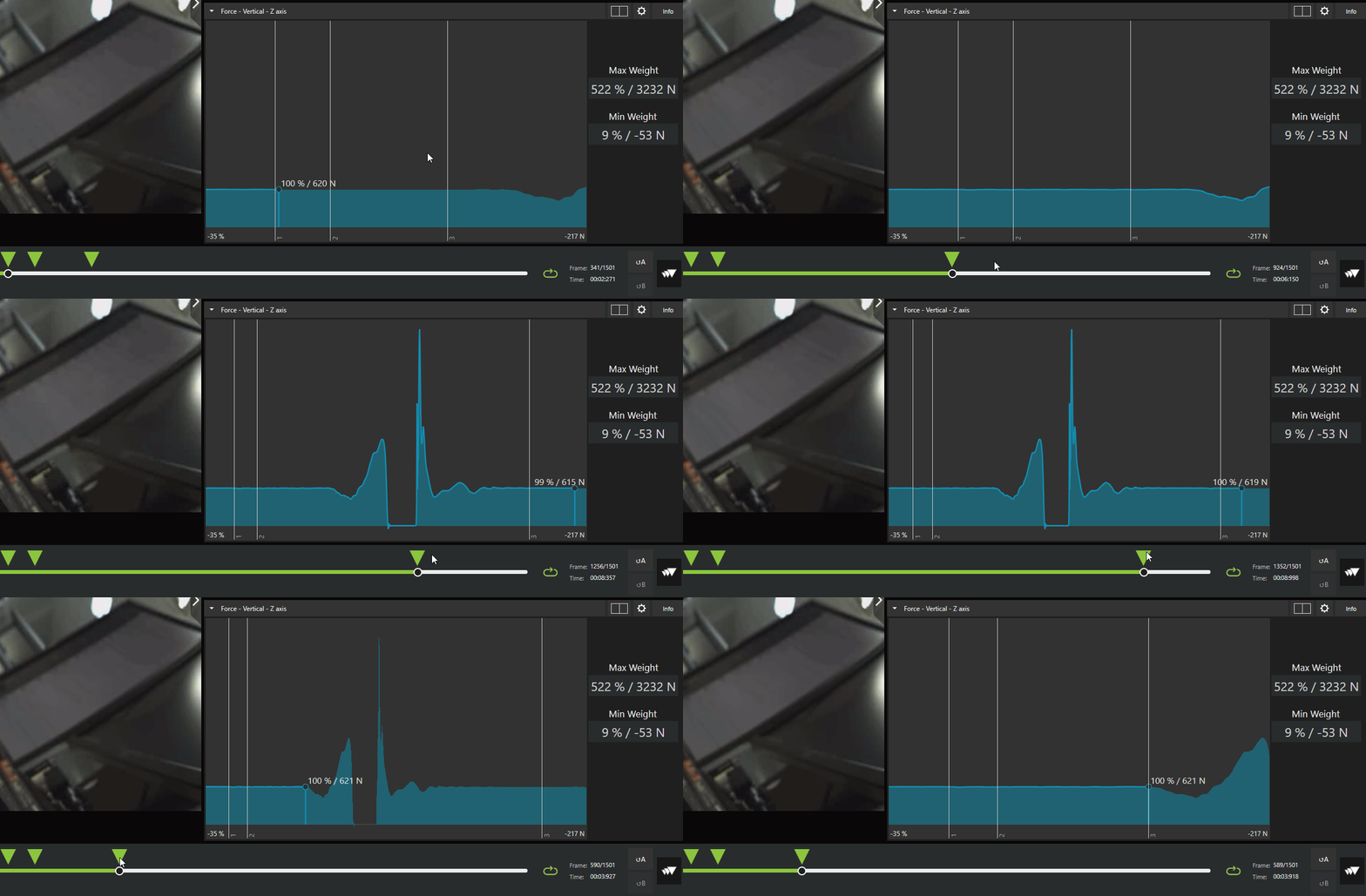
Note: We are only changing what we are looking at “in time”, none of the stored data is actually changed in any way.
For more details on how to view and manipulate the graphs please see this article .
Why should I set bookmarks?
To allow easy playback synchronization between recordings we recommend setting bookmarks.
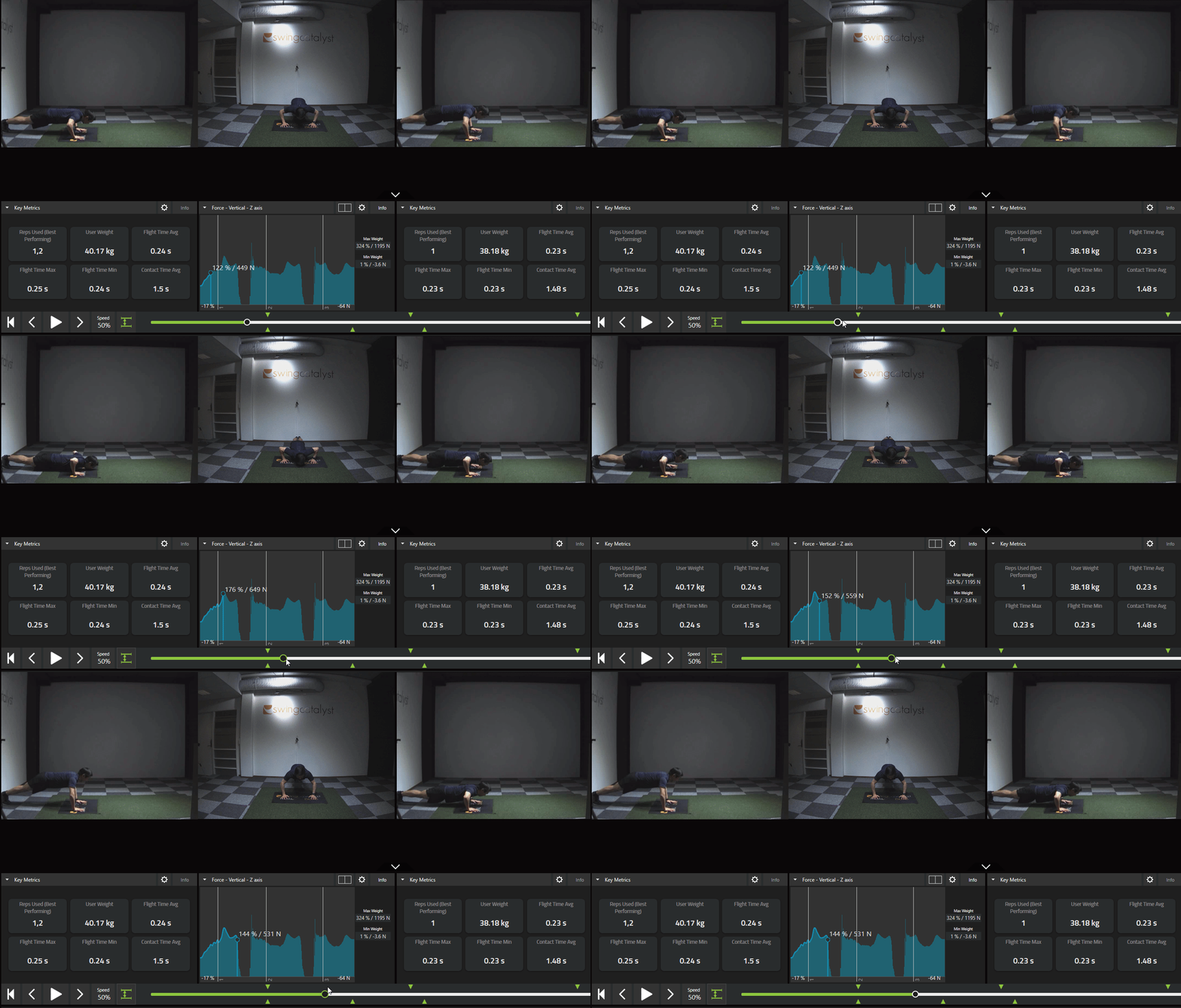
For example, say you want to view two recordings side by side of of a counter movement jump performed by two different users where you wish to synchronize the playback around a specific phase.
Click the “Synchronize” button.
Select the phase / bookmark you wish to synchronize on.
Press play.
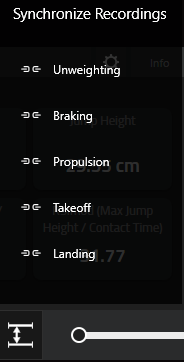
Note: The amount of available bookmarks, and name of the phases varies depending on the sport and activity.
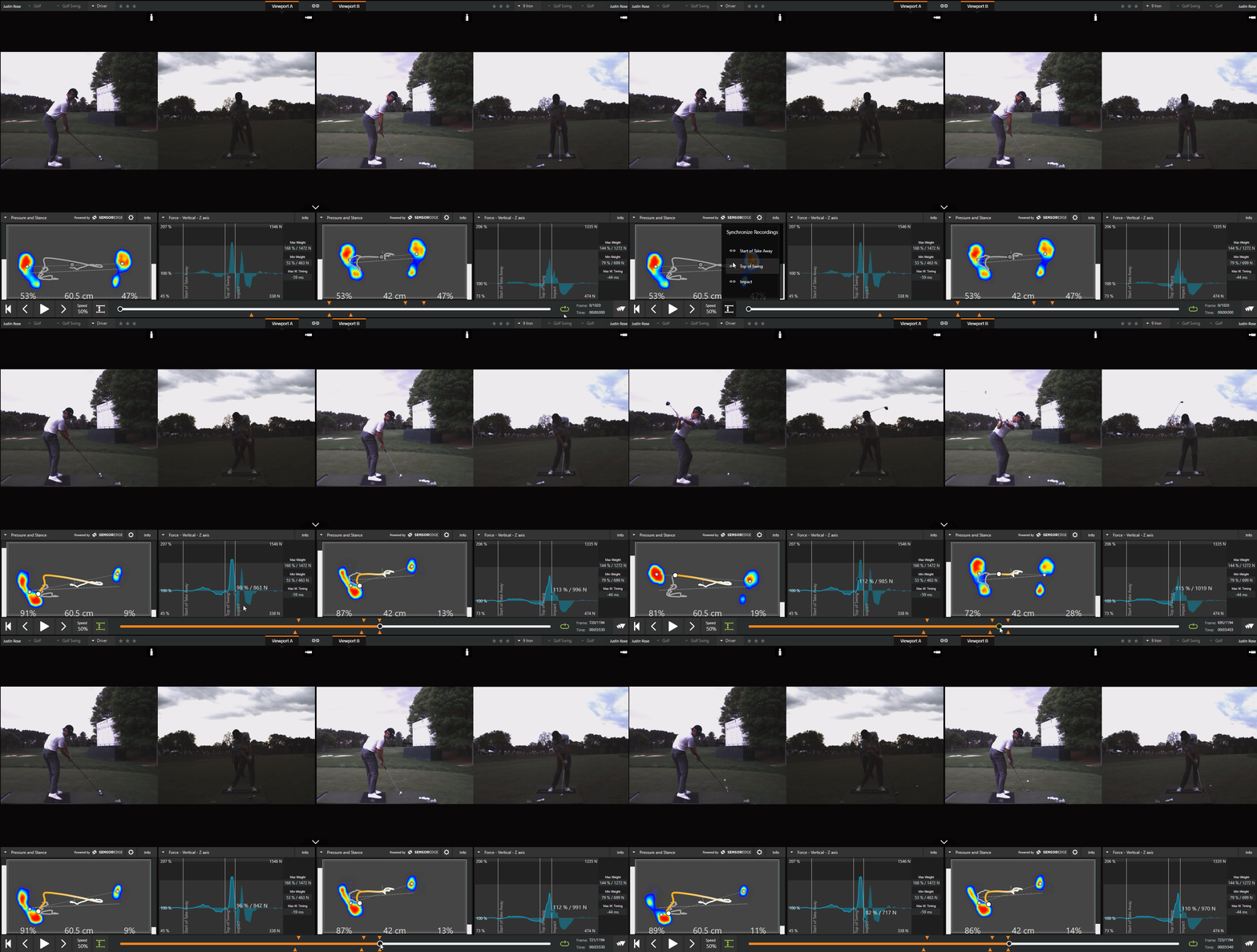
Example synchronizing bookmarks to impact for two golf swings:
This can be done for any sport or activity. For more details on “compare mode” please see the “layouts” section of our user guide .