How to setup automatic backup's of your Swing Catalyst database
How to setup automatic backups of your Swing Catalyst database
This support article covers setup of Backblaze to backup your Swing Catalyst database
If you want to make a backup / copy of your database & swings please see this article: backup-database.md
You can also use Crashplan, https://www.crashplan.com/en-us/
The setup process is similar, and you can use this guide as a reference for most of the steps if you wish to use a different backup provider.
We recommend that a backup system is setup before you start capturing video, as uploading a large database to the cloud takes a long time; uploading a little bit from the get go is easier.
Creating a Backblaze account
Related material:
Backblaze’s Computer Backup Guide: https://www.backblaze.com/backup-your-computer.html
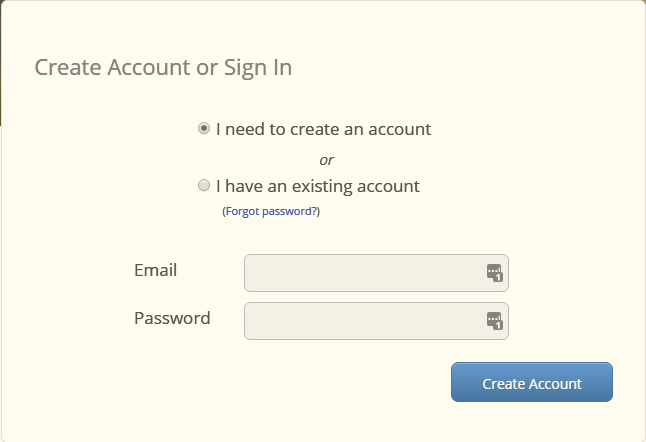
Go to Backblaze.com , sign up and follow the payment instructions.
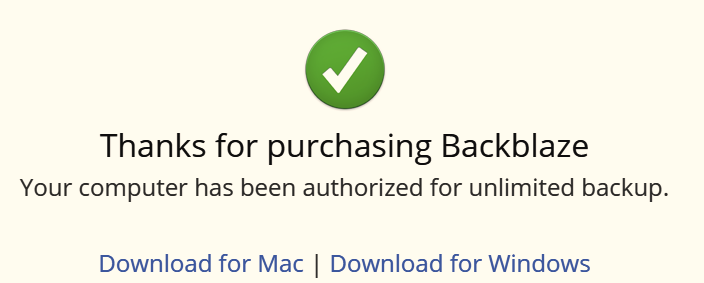
Click Download for Windows.
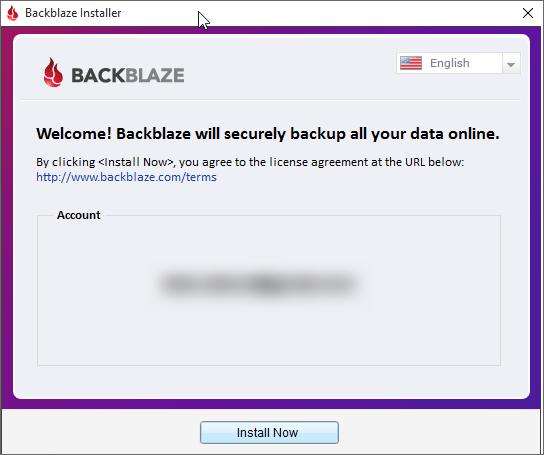
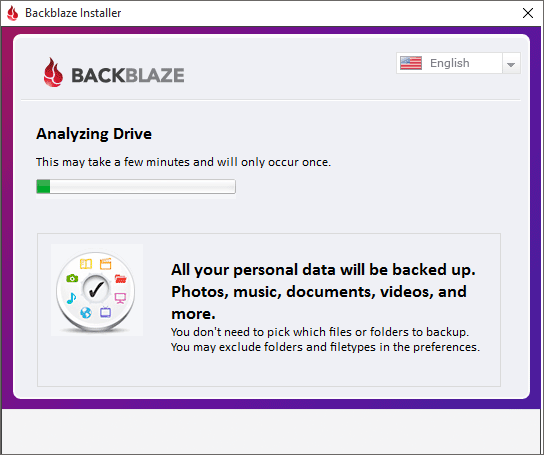
Once the client has downloaded start the program.
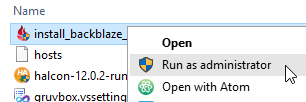
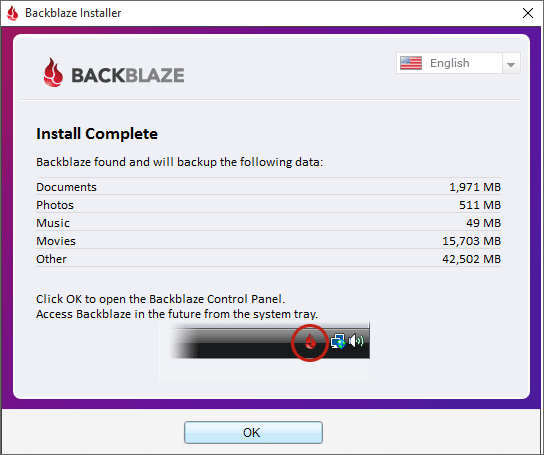
If it doesn’t show the control panel after installation, it might be due to your Windows version, try the newest installer here (you don’t need to uninstall the previous version): http://files.backblaze.com/install_backblaze.exe
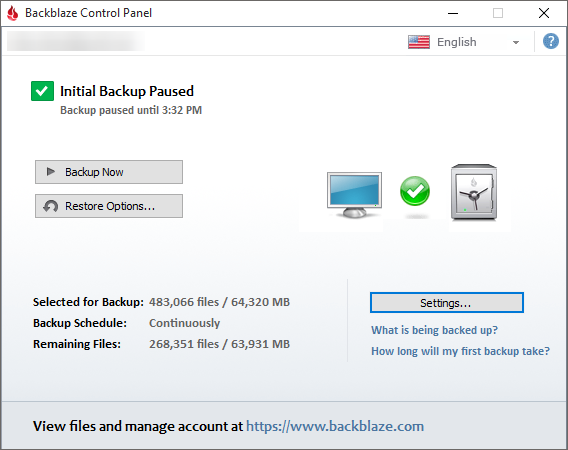
If you have your Swing Catalyst database saved to a different partition or hard drive click Settings.
E.g make sure that D:\ is selected.
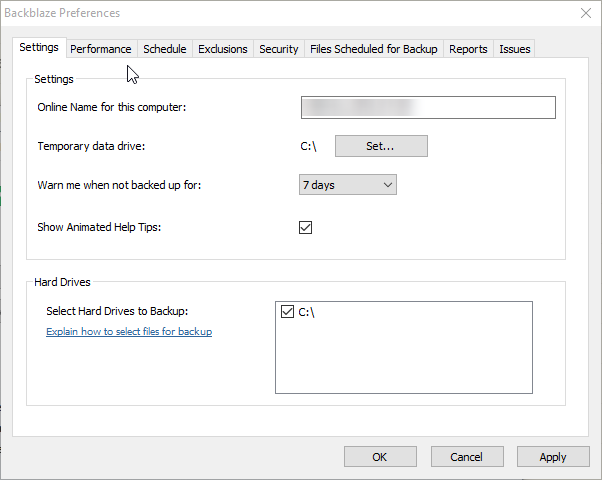
Backblaze will backup all of your data including your Swing Catalyst Settings folder, all of your lesson files and students.
Restoring swings in the even of a data loss
If you have backed up your data (with Backblaze) to an external hard drive and it’s as recent as the online backup, restoring from an external medium is much quicker and recommended.